Quick answer: why is my eSIM not working?
Most of the time the eSIM isn't broken. A setting is off, or you're not yet on the network the eSIM was made for. Start by naming the symptom: No Service, SOS, "network not available," signal bars but no data, an error while installing, or slow data. The table below points you to the right fix.
- Basics first: turn Airplane Mode on for at least 15 seconds, turn it off, then restart your phone. That's Apple's first step for No Service and SOS.
- Travel eSIM at your destination: turn the line on, pick it for cellular data and turn on Data Roaming for that line. Then give it 2 to 5 minutes.
- Carrier lock: a travel eSIM from another provider only works on an unlocked phone. Check Settings > General > About > Carrier Lock.
- Don't delete it: Apple says not to erase an eSIM as a troubleshooting step unless your carrier tells you to.
Find your symptom: cause and fix
Pick the row that matches what you see. Each problem has its own section below, and the detailed guides are linked under the table.
eSIM not working: symptom, cause and fix (as of Nov 6, 2026)
| What you see | Common cause | What to do |
|---|---|---|
| No Service or Searching | Your phone isn't connected to any cellular network: line turned off, Data Roaming off, not at your destination yet, or an outage | Airplane Mode on and off, turn on the line, turn on Data Roaming, restart |
| SOS or SOS only | Not connected to your carrier's network; emergency calls only | Same as No Service; abroad, check Data Roaming first |
| "Network not available" or no bars on the eSIM | Outside the eSIM's coverage area, line off, or the phone picked a network your plan doesn't support | Check you're in a covered country, turn the line on, try automatic and then manual network selection |
| Signal bars but no data | Cellular data still on your home SIM, Data Roaming off, wrong network, missing APN settings or wrong country plan | Select the eSIM for cellular data, turn on Data Roaming for it, turn off Allow Cellular Data Switching |
| eSIM won't install | No Wi-Fi, old iOS, carrier lock, or the QR code was already used | Wi-Fi, software update, check carrier lock, contact the provider |
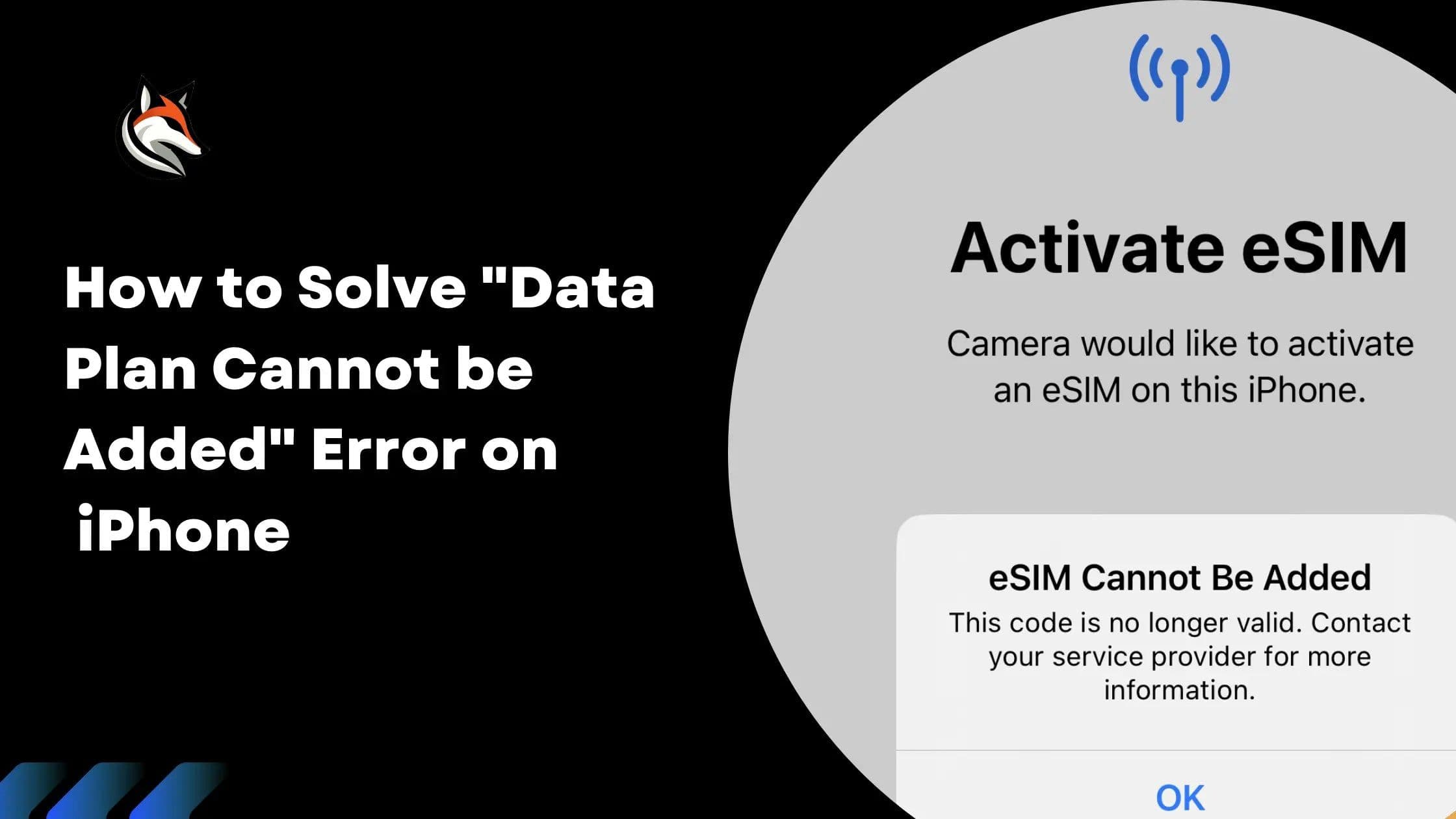
| "This code is no longer valid" | QR code already used; the eSIM is often already installed | Look for the new line in Settings > Cellular; don't delete it |
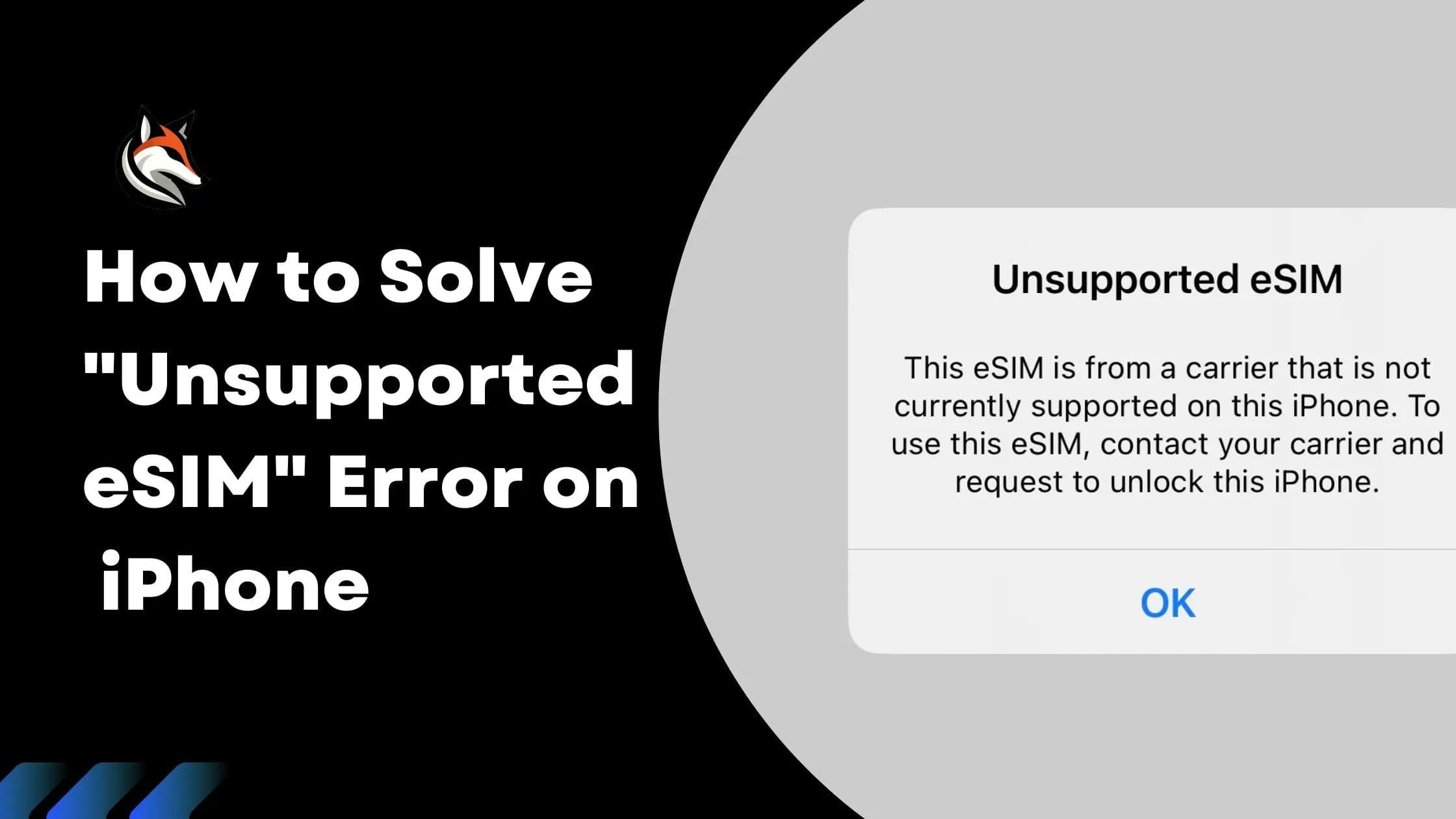
| "Unsupported" or "not compatible" | Carrier lock, a phone without eSIM, or a regional model without eSIM | Check carrier lock and model |
| Slow data or data stops | Data used up, weak signal or a busy network | Check usage, top up, move or switch networks |
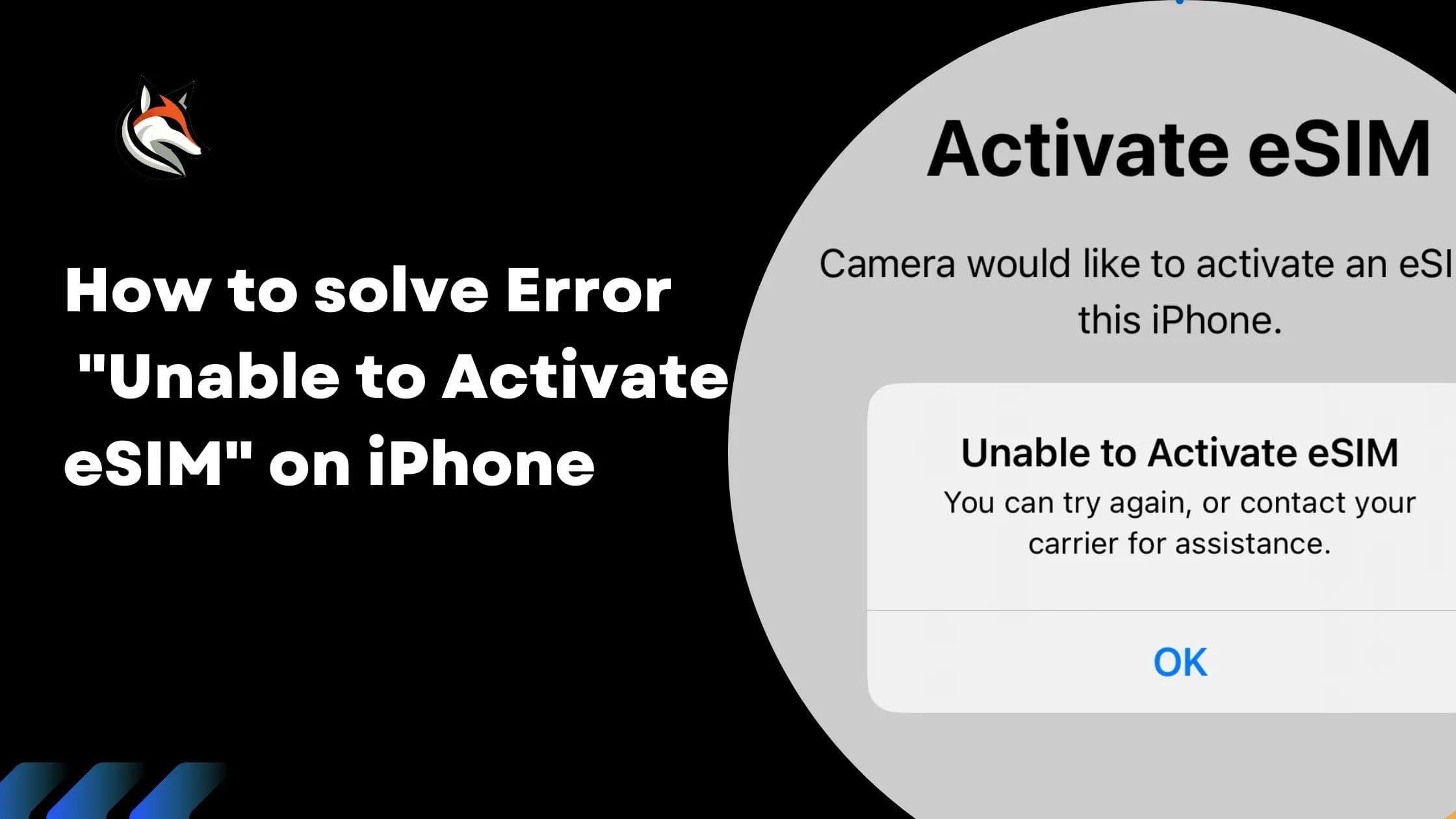
Detailed guides: Unable to activate eSIM, Cellular plan cannot be added, This code is no longer valid, Unsupported eSIM and What is an APN?.
Before you change anything: the basics
These steps take a few minutes. After each one, check whether your carrier name or signal is back.
- Airplane Mode: turn it on for at least 15 seconds, then off (Apple). After you land, Apple suggests about 30 seconds so your iPhone can pick the best available network (Apple).
- Restart: on a Pixel, Google suggests powering off (not Restart), waiting 30 seconds and powering back on (Google).
- Updates: install the latest iOS and check for a carrier settings update in Settings > General > About (Apple). On a Galaxy, go to Settings > Software update (Samsung).
- Turn off Wi-Fi: this makes sure you're testing the cellular network, not Wi-Fi (Google).
Don't delete the eSIM to "start over." Apple's wording: "Don't erase an eSIM as a troubleshooting step unless directed to by your carrier." If you erase it, you need to contact your carrier to get a new one (Apple). eSIMFOX also says not to delete the eSIM after installing it and to contact support before you scan again (eSIMFOX).
No Service, Searching or SOS on your phone
According to Apple, No Service or Searching means your device isn't connected to a cellular network. SOS or SOS only means it isn't connected to your cellular network but can still make emergency calls through other carriers' networks, a feature Apple lists for Australia, Canada and the United States (Apple). Either way, cellular data won't work until the eSIM line connects.
iPhone
- Turn Airplane Mode on for at least 15 seconds, turn it off, then restart.
- Go to Settings > Cellular and tap the eSIM line. If it's off, tap Turn On This Line.
- Abroad: go to Settings > Cellular > Cellular Data Options and turn on Data Roaming. With two lines, tap the eSIM number first, then Cellular Data Options.
- Go to Settings > General > Date & Time and make sure Set Automatically is on.
- Update iOS and check for a carrier settings update (Settings > General > About).
Sources: Apple: SOS, No Service or Searching and Apple: data roaming options. Still nothing? Apple says to ask your carrier to confirm that your account is active and in good standing, that there's no outage where you are, that your device isn't blocked and that you have the right data plan.
Android
- Google Pixel: Settings > Network & internet > SIMs. Tap your carrier and make sure Use SIM is on. Also turn off Airplane mode (Google).
- Samsung Galaxy: Settings > Connections > SIM manager. Use the switch next to the eSIM to turn it on (Samsung).
eSIM says "network not available"? Check coverage and network selection
A travel eSIM only connects in the countries it covers. eSIMFOX says the eSIM connects once you arrive in a covered destination and turn on roaming, so no signal from it at home is expected (eSIMFOX). eSIMFOX also recommends keeping roaming off until you land.
If you're in the right country and still see no network, let the phone search again. eSIMFOX's USA eSIM, for example, connects automatically to the strongest available partner network (eSIMFOX). Turn Airplane Mode on for about 30 seconds and off again so your iPhone can pick the best network (Apple). On a Galaxy, check Settings > Connections > Mobile networks > Network operators > Select automatically (Samsung).
Near a border, your phone may connect to a network in the next country. eSIMFOX recommends manual network selection in that case: pick one of the supported networks listed in your order (eSIMFOX). On a Pixel, the network list is under Settings > Network & internet > SIMs > Network (Google).
Signal bars but no data: data roaming, cellular data line and APN
You see bars, but nothing loads? eSIMFOX names the usual causes: cellular data is still using your main SIM, roaming is off, the phone is on the wrong network, APN settings are missing, or the plan is for a different country (eSIMFOX).
iPhone
- Settings > Cellular > Cellular Data: select your travel eSIM. Only one number can use cellular data at a time.
- Settings > Cellular > tap the eSIM number > Cellular Data Options > turn on Data Roaming.
- Settings > Cellular > Cellular Data > turn off Allow Cellular Data Switching. eSIMFOX recommends this, and Apple notes that switching doesn't work while Data Roaming is in use anyway.
- Wait 2 to 5 minutes. If it still won't connect, restart.
Sources: Apple: Dual SIM with eSIM, Apple: data roaming, eSIMFOX setup guide.
Android
- Google Pixel: Settings > Network & internet > SIMs. Turn on Mobile data, choose the eSIM under Mobile data in "Your primary SIMs," then turn on Roaming for it (Google).
- Samsung Galaxy: in Settings > Connections > SIM manager, make sure the eSIM is set for data (Samsung). Then go to Settings > Connections > Mobile networks and turn on Data roaming (Samsung). If the Data roaming switch is grayed out, Samsung says to check that mobile data is on.
Do I need to change the APN?
Almost never. Apple says not to edit the APN unless your carrier tells you to, because wrong settings can cause a loss of cellular data and extra charges. On iPhone, the APN is under Settings > Cellular > Cellular Data Network, and Reset Settings there brings back your carrier's defaults. An iOS update also resets manual APN changes (Apple). On a Pixel, the APN is under Settings > Network & internet > SIMs > Access point names (Google). Only enter an APN if your eSIM provider gives you one. More in What is an APN?.
Last resort: reset network settings
If nothing else helps, reset your network settings. You'll need to re-enter Wi-Fi passwords afterward.
- iPhone: Settings > General > Transfer or Reset iPhone > Reset > Reset Network Settings. Apple says this resets all Wi-Fi networks and passwords, cellular settings, and VPN and APN settings (Apple).
- Google Pixel: Settings > System > Reset options > Reset Mobile Network Settings (Google).
- Samsung Galaxy: Settings > General management > Reset > Reset network settings > Reset settings. This also resets Wi-Fi and Bluetooth (Samsung).
eSIM won't install or activate
If you get an error while adding the eSIM, the network isn't the problem yet. Apple lists three requirements: your iPhone connected to Wi-Fi or a hotspot, an active plan and eSIM from a carrier that supports eSIM, and the latest iOS version your iPhone can use (Apple). Apple's steps:
- Turn Airplane Mode on and off.
- Go to Settings > Cellular. If the number you're trying to activate is shown, turn the line off and back on.
- Restart your iPhone.
- Go to Settings > General > About, scroll to the eSIM section and tap the version number next to Carrier to check for an update.
- On iOS 18 or later, the Apple Support app can run extra diagnostics.
After each step, Apple suggests opening Control Center to check whether your carrier shows in the status bar. On a Galaxy, you add an eSIM in Settings > Connections > SIM manager > Add eSIM, then scan the QR code (Samsung). If the QR code won't scan on iPhone, you can enter the details by hand under Settings > Cellular > Add Cellular Plan > Enter Details Manually (Apple); see What is an SM-DP+ address?. For specific errors, read Unable to activate eSIM or Cellular plan cannot be added.
"This code is no longer valid"
According to eSIMFOX, this usually means the eSIM is already installed or the QR code was already used. Go to Settings > Cellular and look for a new line called Travel, Mobile Data, Secondary, PLUS or eSIMFOX Travel. Don't delete it, and if you're unsure, contact support before you try again (eSIMFOX). Full steps: This code is no longer valid.
Carrier lock: why an unlocked phone matters
A travel eSIM from another provider won't work on a phone that's locked to your carrier. On iPhone, go to Settings > General > About. If No SIM restrictions appears next to Carrier Lock, your iPhone is unlocked. Only your current carrier can unlock it, and the request might take a few days (Apple). Google says a Pixel must be SIM-unlocked to use it with any carrier (Google). On a Galaxy, Samsung says that if you're asked for an unlock code after inserting a SIM, you should contact the phone's original carrier (Samsung).
eSIM also needs a supported model: on iPhone, that's iPhone XS, iPhone XS Max, iPhone XR or later (Apple). Check other phones in our eSIM compatible devices list. For regional models without eSIM, read Unsupported eSIM on iPhone.
Slow data or data that stops
- Check your data balance: with eSIMFOX, the connection pauses once your data is used up. You can add a new plan to the same eSIM without installing a new one (eSIMFOX). Apple also notes that going over an international plan's limit can mean no data or slower speeds. On iPhone, see your usage under Settings > Cellular, in the Cellular Data section (Apple).
- Signal and location: eSIMFOX says actual speed and coverage depend on location, device and network load, with 4G or 5G where available (eSIMFOX). With weak signal, Google suggests moving to a different spot and away from walls and buildings (Google).
- 5G settings: on a Pixel, Battery Saver turns off 5G, and you can pick a preferred network type under Settings > Network & internet > SIMs (Google). On a Galaxy, the setting is Settings > Connections > Mobile networks > Network mode (Samsung).
- Find a better network: toggle Airplane Mode for about 30 seconds so your iPhone picks the best network (Apple). If it stays slow, eSIMFOX suggests choosing another supported network from your order manually (eSIMFOX).
Not sure how much data you need? See How much data do I need for travel in Europe?.
Travel eSIM checklist for when you land
Work through these steps in order once you arrive:
Turn on a travel eSIM: iPhone and Android (as of Nov 6, 2026)
| Step | iPhone | Android |
|---|---|---|
| 1. Turn on the eSIM line | Settings > Cellular > your eSIM > Turn On This Line | Pixel: SIMs > Use SIM; Galaxy: SIM manager |
| 2. Use the eSIM for data | Settings > Cellular > Cellular Data > your eSIM | Pixel: SIMs > Mobile data; Galaxy: SIM manager |
| 3. Turn on Data Roaming for the eSIM | Settings > Cellular > your eSIM > Cellular Data Options > Data Roaming | Pixel: SIMs > Roaming; Galaxy: Mobile networks > Data roaming |
| 4. Stop data switching | Cellular Data > Allow Cellular Data Switching off | Keep mobile data on the eSIM |
| 5. Wait | 2 to 5 minutes, then restart | 2 to 5 minutes, then restart |
Sources: Apple, Google, Samsung, eSIMFOX setup guide.
On iOS 26 and later, your iPhone may show a Turn On Travel eSIM notification. Tap it and choose Travel eSIM Only or Travel eSIM and Current eSIM. If you keep both lines, the travel eSIM is used for data, but Apple says you might still incur roaming fees from your home eSIM (Apple). Check your home carrier's roaming terms before you go.
Good to know: an eSIMFOX eSIM is data only and has no phone number. Calls and texts stay on your regular SIM. Plan validity starts with the first network connection at your destination, not at purchase (eSIMFOX). Step-by-step setup guides for each phone are in our activation guides.
When to contact support
If you've gone through every step and it still doesn't work, the problem may be with the plan or the network. Before you contact your provider, Apple suggests writing down the exact error message and having your IMEI or EID ready, both under Settings > General > About (Apple).
eSIMFOX support is available 24/7 on WhatsApp (eSIMFOX). Send your order number, current country, phone model, screenshots of your eSIM and cellular settings and any error message (eSIMFOX).
Sources
- Apple Support: SOS, No Service or Searching, Cellular data roaming options, Dual SIM with an eSIM, Use eSIM while traveling internationally, If you can't set up an eSIM, How to erase an eSIM, How to unlock your iPhone, Set up eSIM on iPhone, View and edit your APN, Reset network settings. Accessed Nov 6, 2026.
- Google Pixel Help: Fix mobile connectivity issues, Connect to mobile networks, Use your Pixel with any carrier. Accessed Nov 6, 2026.
- Samsung Support: Troubleshoot mobile data, Turn data roaming on or off, SIM cards and eSIM, Optimize network connectivity. Accessed Nov 6, 2026.
- eSIMFOX: How to install and use your eSIM, USA eSIM product page (validity, support, top-ups, speeds). Accessed Nov 6, 2026.
Related guides
- Unable to activate eSIM on iPhone: causes and fixes
- Cellular plan cannot be added on iPhone
- How to fix "This code is no longer valid"
- eSIM not compatible with this iPhone: causes and fixes
- What is an APN (Access Point Name)?
- What is an SM-DP+ address? Install an eSIM manually
- How to install and use your eSIM
- eSIM compatible phones and devices
- All eSIMFOX destinations
Frequently Asked Questions
Why is my eSIM not working?
Why does my eSIM say network not available?
What does No Service mean on my iPhone?
What does SOS mean on my iPhone?
Why do I have signal but no data on my eSIM?
Do I need to turn on data roaming for a travel eSIM?
Can a carrier-locked phone use a travel eSIM?
Should I delete the eSIM and reinstall it?
Why is my eSIM data so slow?
Can I make calls with an eSIMFOX travel eSIM?
Stay connected on your next trip
Browse eSIM plans for 200+ destinations and activate in 60 seconds.