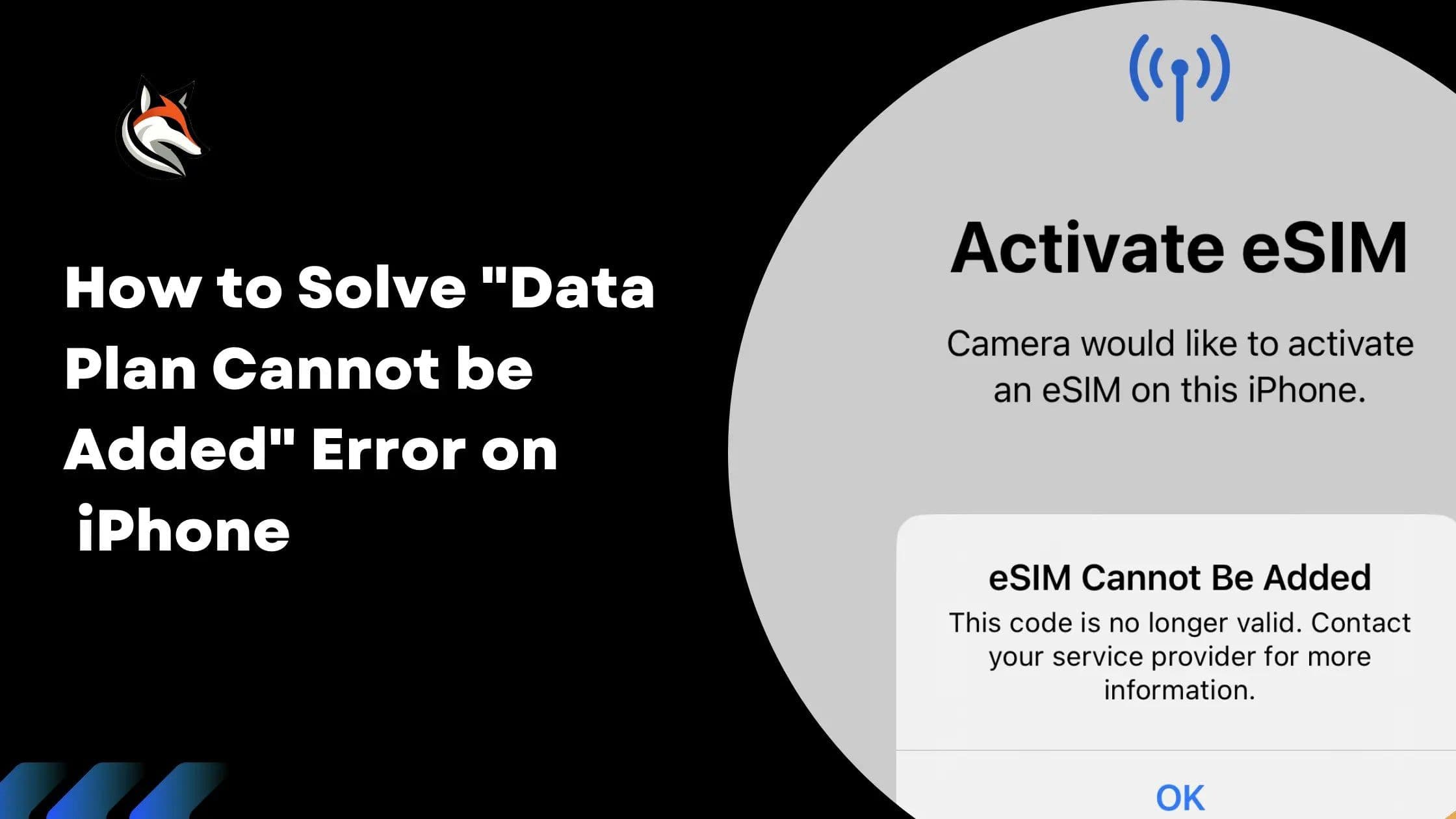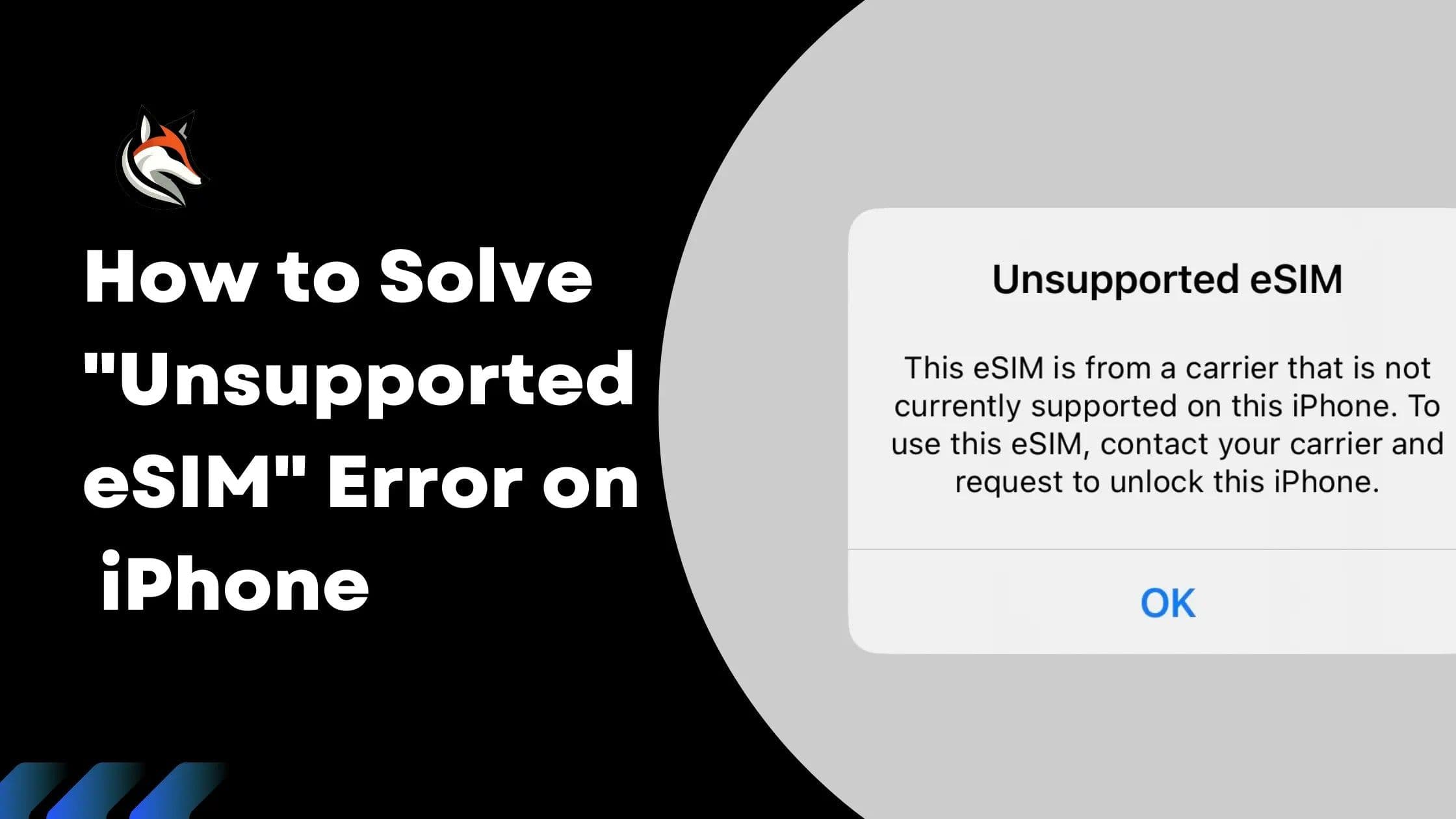
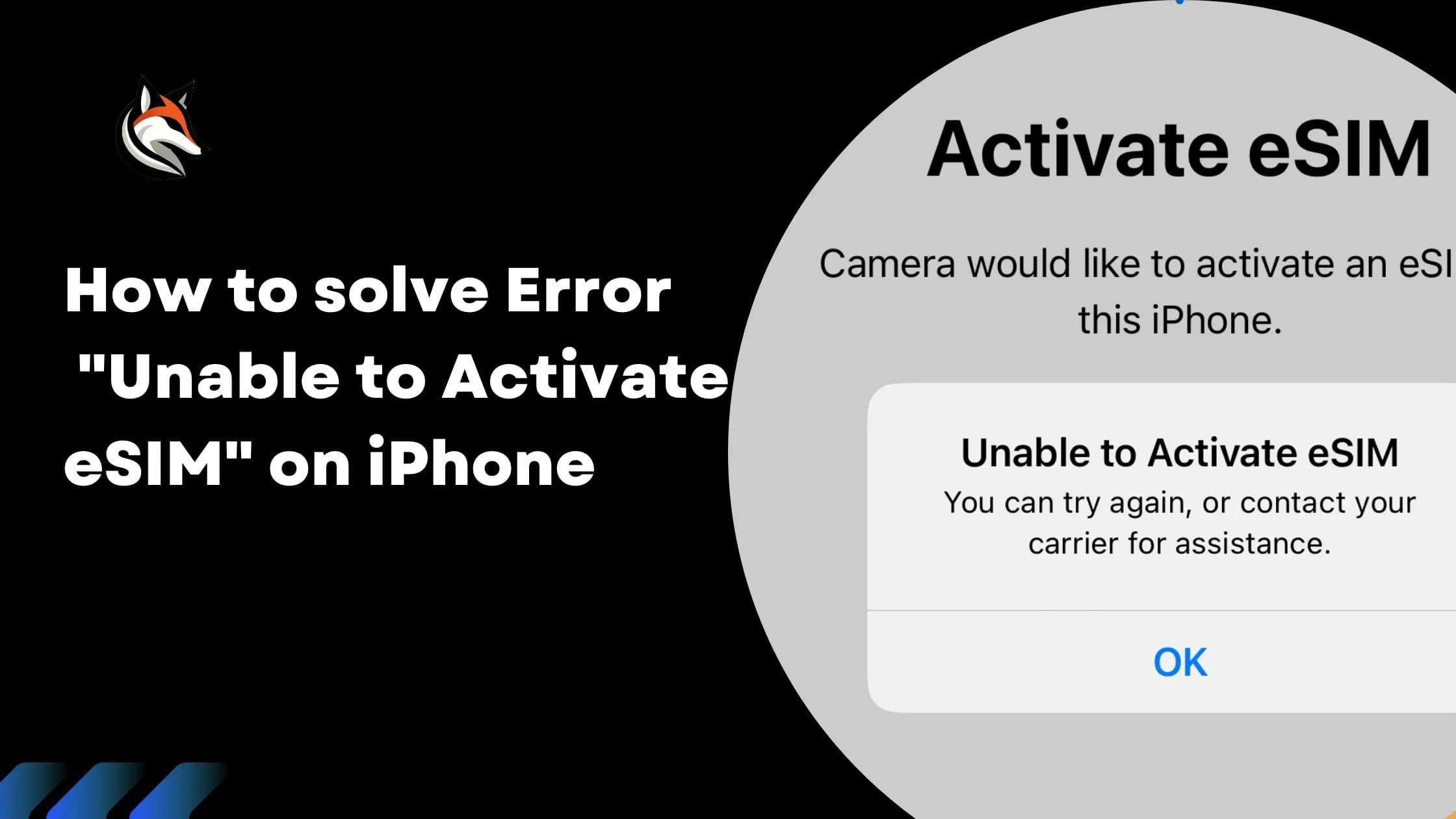
Encountering the "Unable to Activate eSIM" error on your iPhone can be a frustrating roadblock, particularly when you're looking forward to the convenience and benefits that eSIM technology offers. After attempting to activate your eSIM via a QR code or a manual activation code, you might come across this error message, which suggests trying again or contacting your carrier for assistance.
Solution:
1. Check Internet Connection
Before proceeding with any other troubleshooting steps, confirm that your phone has a stable Wi-Fi or cellular internet connection. An active internet connection is crucial for verifying and activating the eSIM on your device. Without it, the activation process cannot complete successfully.
2. eSIM is Already Installed
In many cases, the eSIM might have already been installed on your phone, even if you receive an error message. This installation can occur in the background shortly after scanning the QR code. To check if the eSIM is installed and set up correctly, follow these steps:
Open Settings: Go to the main settings menu on your iPhone.
Tap Cellular: On some versions or regions, this might appear as 'Mobile Data'.
Tap Cellular Data: This is typically found at the top of the Cellular menu. On the subsequent page, select the eSIM plan. This action directs the phone to use the eSIM for data connections.
Return to Cellular Menu: Scroll down and find your eSIM plan, which could be labeled as 'Personal', 'Travel', or 'Secondary'.
Confirm "Turn On This Line": Make sure this setting is enabled (ON).
Confirm "Data Roaming": Ensure that data roaming is also turned ON.
After following these steps, if you find the eSIM and verify that the settings are accurately configured, your eSIM should be ready to connect automatically upon arrival at your destination. No additional actions are needed from your end.
Get Support
If after executing the aforementioned steps you ascertain that the eSIM has not been installed on your device, or if you continue to encounter the activation error, it's time to seek further assistance. Please contact us at: support@esimfox.com Our team is equipped to offer the necessary support to resolve this issue, ensuring your eSIM is activated and fully functional.
Stay connected on your next trip
Browse eSIM plans for 200+ destinations and activate in 60 seconds.