
How to install and use your eSIMFOX eSIM
Install your eSIM before you travel, connect after you land, and keep the same eSIM for future trips.
Install before travel. Connect after landing.
Add your eSIM while you still have Wi-Fi. After you arrive, select eSIMFOX for mobile data and turn on data roaming.
You don't need a new eSIM for every country — keep this one installed and top it up for your next destination.
Before you start
Six things that take a minute now and save you trouble later.
Check that your phone supports eSIM
Make sure your phone is unlocked
Connect to Wi-Fi before installation
Do not delete the eSIM after installing it
Data-only — calls & SMS stay on your normal SIM
Install before travel, turn on roaming after landing
Pick your device & method
Choose iPhone or Android, then your install method. Direct Install is the fastest — no app needed.
iPhone · Fast Install
About 2 minutes1Install the eSIM on your iPhone
Tap Install eSIM on iPhone. Your iPhone opens the eSIM setup screen automatically — follow the Apple setup steps until the eSIM has been added to your device.
2Keep “Primary” for Default Line, iMessage and FaceTime
When your iPhone asks which line to use for Default Line, choose Primary.
When it asks which line to use for iMessage & FaceTime, choose Primary again.
Why: Your eSIMFOX plan is for mobile data only. Your normal SIM should stay selected for calls, SMS, iMessage and FaceTime.
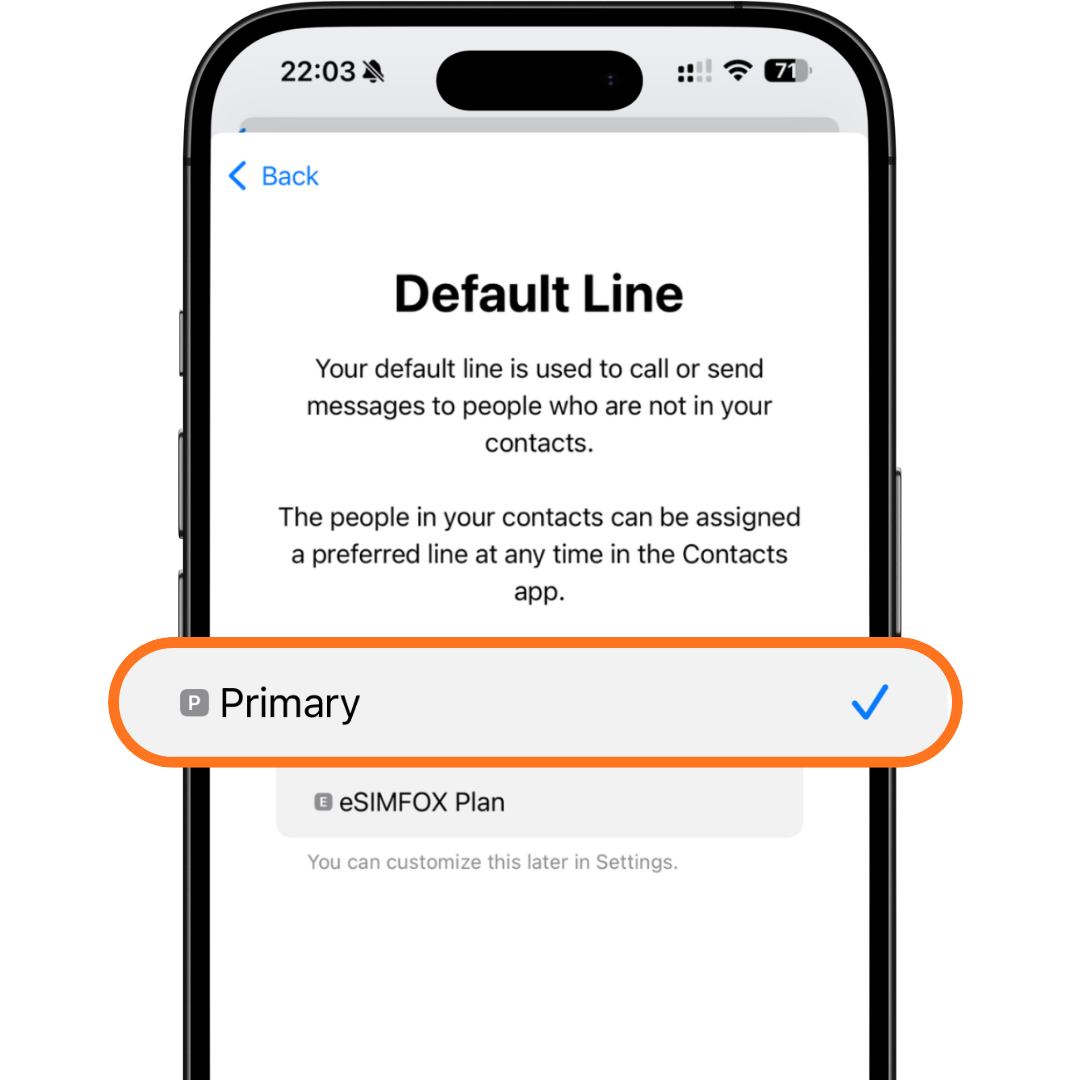
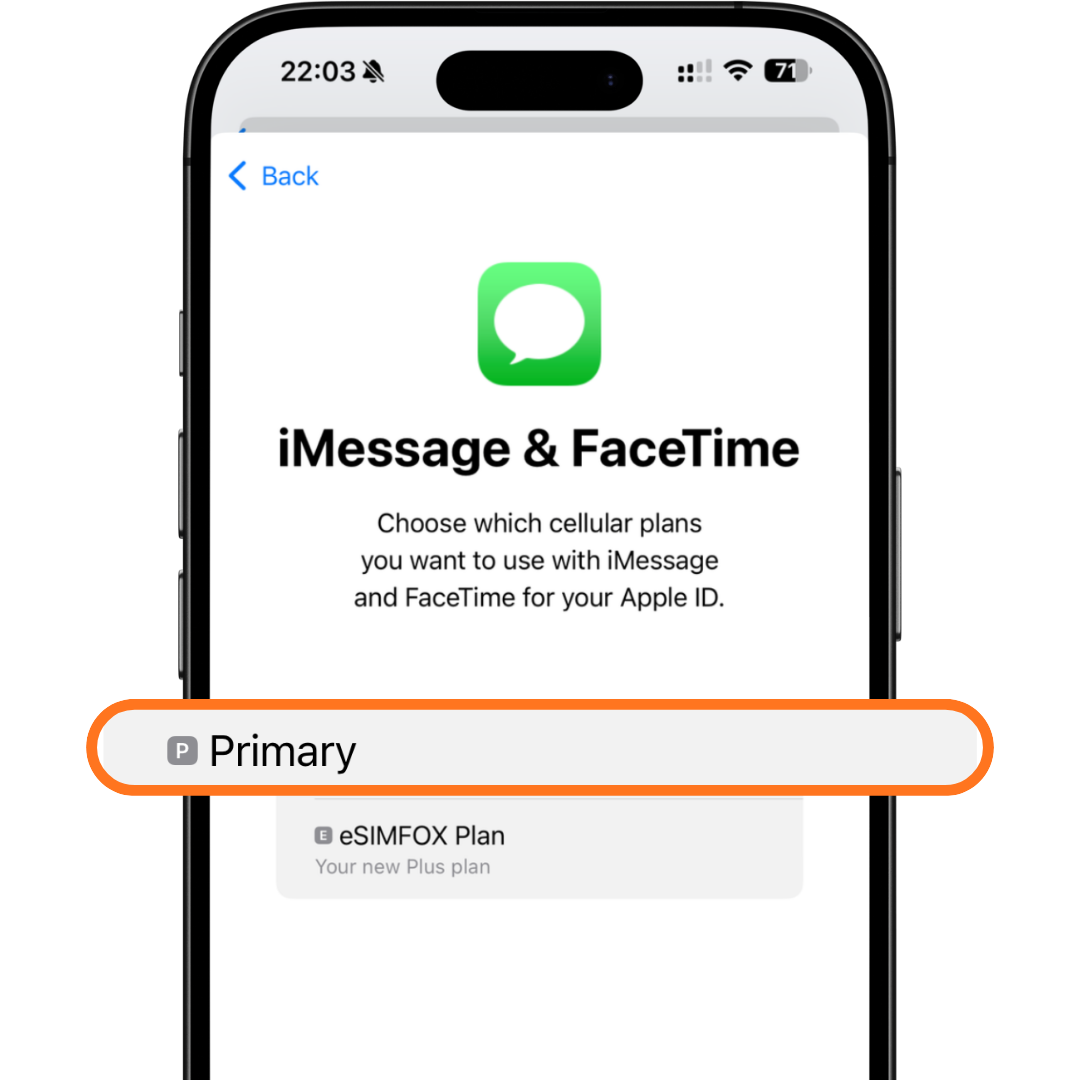
3Select your eSIMFOX plan for Mobile Data
When your iPhone asks which line should be used for Cellular Data / Mobile Data, choose eSIMFOX Plan. This tells your iPhone to use the eSIMFOX plan for internet access.
Important: If your phone asks about Mobile Data Switching, turn it OFF. This stops your iPhone from switching back to your normal SIM and using roaming data by mistake.
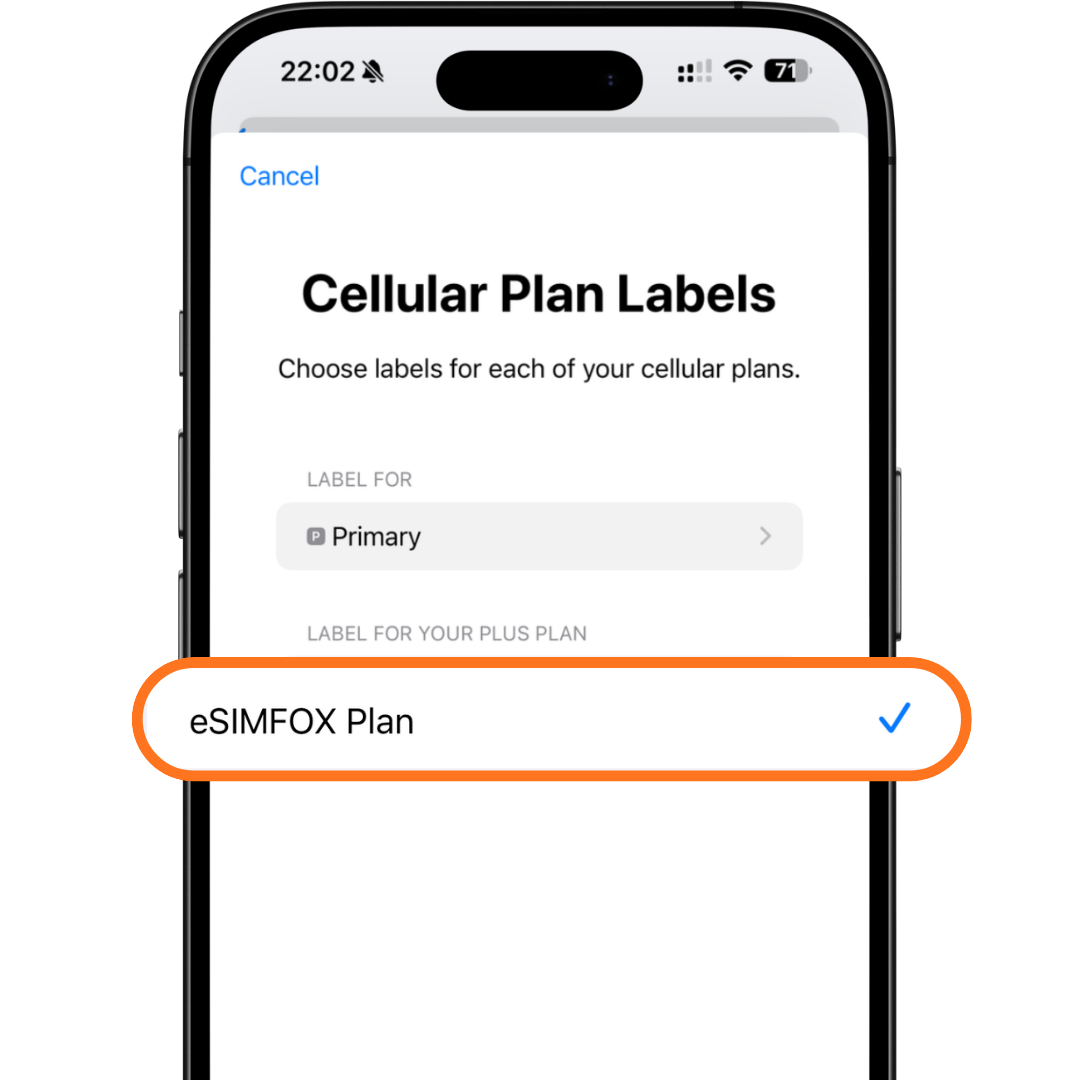
4Turn on Data Roaming
Turn Data Roaming ON for your eSIMFOX plan.
Why: Travel eSIMs need data roaming enabled to connect to partner networks abroad. This does not activate roaming on your normal SIM — only on the eSIMFOX plan.
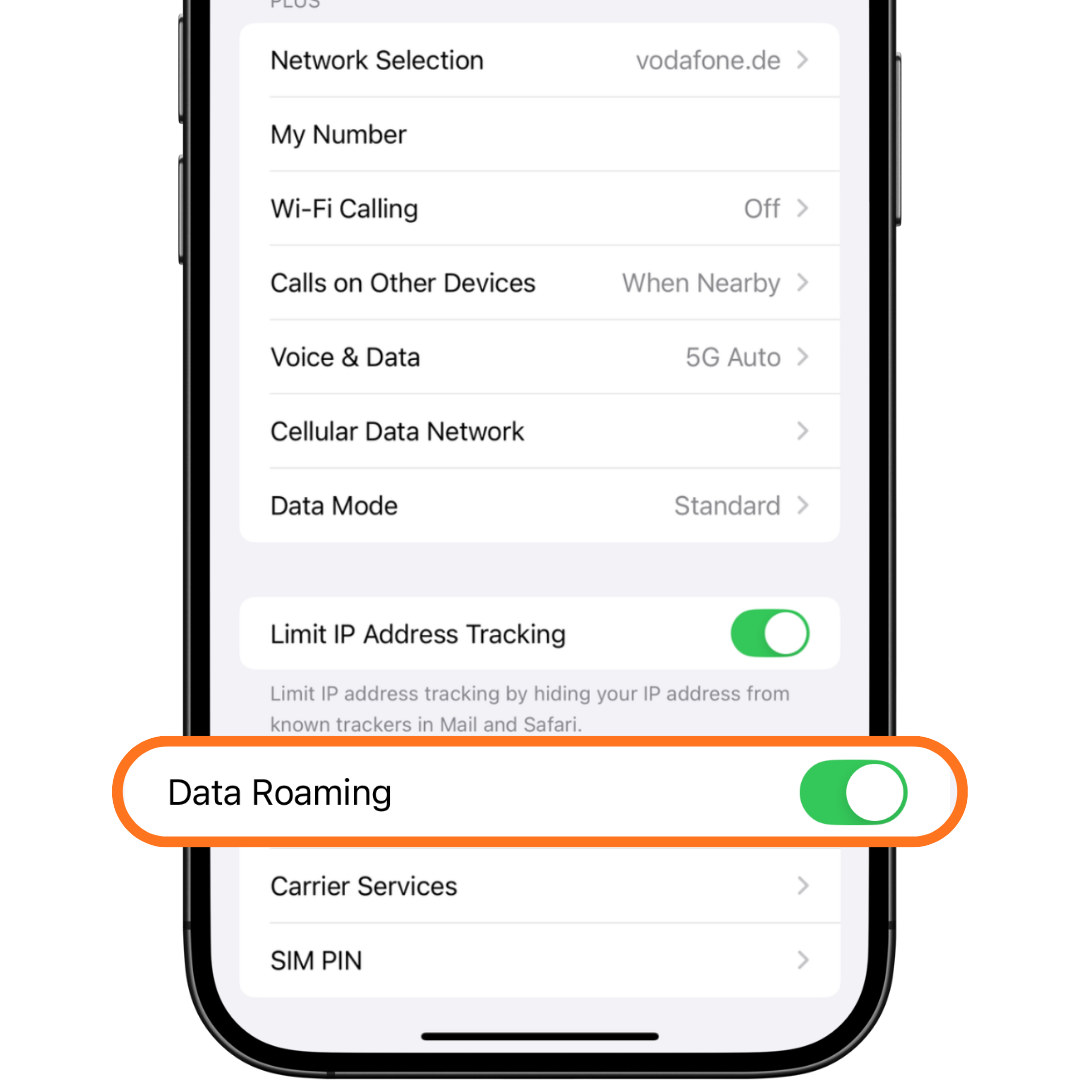
After you land
Your eSIM is installed. Now activate mobile data in your destination country.
Go to your phone's SIM or Cellular settings.
Make sure the eSIM line is enabled.
Set eSIMFOX Travel as your mobile data line.
Enable Data Roaming for the eSIMFOX eSIM.
On iPhone, turn off Allow Cellular Data Switching. On Android, keep mobile data on the eSIMFOX eSIM.
Wait 2–5 minutes. If it doesn't connect, restart your phone.
Troubleshooting
The most common issues and exactly how to solve them.
1“This code is no longer valid”
This usually means the eSIM is already installed on your phone, or the QR code was already used. First check your cellular settings and look for a new eSIM line — often named Travel, Mobile Data, Secondary, PLUS, or eSIMFOX Travel. Do not delete it. If you're unsure, contact eSIMFOX support before trying again.
2“eSIM installed, but no internet”
Check these first:
- You're in the correct destination country.
- The eSIMFOX eSIM is turned on.
- Data roaming is on for the eSIMFOX eSIM.
- Mobile data is set to the eSIMFOX eSIM.
- Mobile data switching is turned off.
- Airplane mode is off.
- Restart the phone.
- Wait 2–5 minutes for network registration.
- Try manual network selection if automatic fails.
3“Signal bars show, but data doesn't work”
This usually means mobile data is still using your main SIM, roaming is off, the phone connected to the wrong network, APN settings are missing, or the wrong country plan was purchased.
4“eSIM doesn't appear after installation”
Restart your phone and check your SIM settings again. On iPhone, go to Settings › Cellular. On Android, go to SIM manager or SIMs. If the eSIM still doesn't appear, contact support before scanning again.
5“I'm close to a border”
Near a border, your phone may connect to a network from the wrong country. Open manual network selection and choose one of the supported networks shown in your eSIMFOX order.
- Screenshot of your eSIM settings
- Screenshot of your cellular / mobile data settings
- Your current country
- Your order number
- Your phone model
- Any error message shown on screen
Frequently asked questions
Can I install the eSIM before I travel?
Yes. Install it before travel while connected to Wi-Fi. Your data connection will work once you arrive in the covered destination and turn on roaming.
Should I turn on data roaming before I land?
No. Keep roaming off until you arrive. After landing, turn on roaming for your eSIMFOX eSIM.
Do I need a new eSIM for every country?
No. With eSIMFOX you can keep one eSIM installed and add new country plans to the same eSIM.
Can I delete the eSIM after my trip?
Don't delete it if you want to use eSIMFOX again. Keep it installed and top it up for your next trip.
Does eSIMFOX support calls and SMS?
eSIMFOX is for mobile data. Keep your normal SIM active if you need calls, SMS, or verification messages.
Why does my phone show two SIMs?
That's normal. Your normal SIM stays for calls and SMS, and your eSIMFOX eSIM is used for travel data.
Can I use WhatsApp with eSIMFOX?
Yes. WhatsApp works with mobile data, and your WhatsApp number does not change.
Can I use hotspot?
Yes, hotspot is supported when your phone and selected plan allow tethering.
Get an eSIM for your next trip
Pick your destination, install in minutes, and land connected. One eSIM you can reuse anywhere.
Still stuck?
Send us your order number and screenshots on WhatsApp. Most setup issues are fixed faster when we can see your cellular settings.
Contact WhatsApp SupportPlease include your current country, phone model, and a screenshot of your eSIM settings.