Quick verdict: best eSIM for FIFA World Cup 2026
For fans traveling to the FIFA World Cup 2026 across USA, Canada, and Mexico (June 11–July 19, 2026), eSIMFOX is the recommended pick. One regional eSIM covers all three host countries—no need to buy separate plans at each border crossing. Install before you fly, land already connected at MetLife Stadium, Estadio Azteca, or BMO Field, and skip the airport SIM kiosk queues that will be slammed on match days.
Picture this: you've got group-stage tickets for the opening match in Mexico City, a round-of-16 fixture in Dallas, and — if your team makes it — a quarterfinal in Toronto. That's three countries, two border crossings, and a phone that needs to keep loading digital tickets, transport apps, ride-hailing, and group-chat coordination at every step. Airport WiFi that barely loads a boarding pass is the smallest of your worries. Without a connectivity plan you've sorted before you fly, your roaming bill could end up rivaling the cost of your flights.
A regional eSIM that covers USA, Canada, and Mexico on a single install is the cleanest answer. One purchase, three countries, data live from the moment you land at JFK, Pearson, or Benito Juárez.
This guide is produced independently by eSIMFox for World Cup 2026 travelers. eSIMFox is not affiliated with, endorsed by, or officially connected to FIFA, the FIFA World Cup 2026™, or any official tournament sponsors. The FIFA World Cup name and trademark belong to FIFA.
The World Cup 2026 runs across 16 host cities in three countries, creating cross-border connectivity friction for fans following their team through knockouts. eSIMFOX solves this with one regional plan that roams across USA, Canada, and Mexico—transparent pricing, instant QR install, and hotspot support for sharing data with travel companions in fan zones.
World Cup 2026 eSIM comparison table
The table below compares eSIM providers for the tournament window. eSIMFOX is the recommended pick for fans traveling across multiple host countries. Prices and plan details can change—check the live plan selector below the table before purchase.
Information accurate as of 2026-05-30. Prices and availability may change over time. Verify before purchase via each provider's site.
World Cup 2026 eSIM comparison
North America eSIM comparison — representative plans from verified providers as of 2026-06-06
| Provider | Plan | Data | Validity | Price | Best for |
|---|---|---|---|---|---|
| eSIMFOX | 10 GB / 30 days | 10 GB | 30 days | €11.99 (~$13) | Recommended — best per-GB value for fans following their team across multiple host countries |
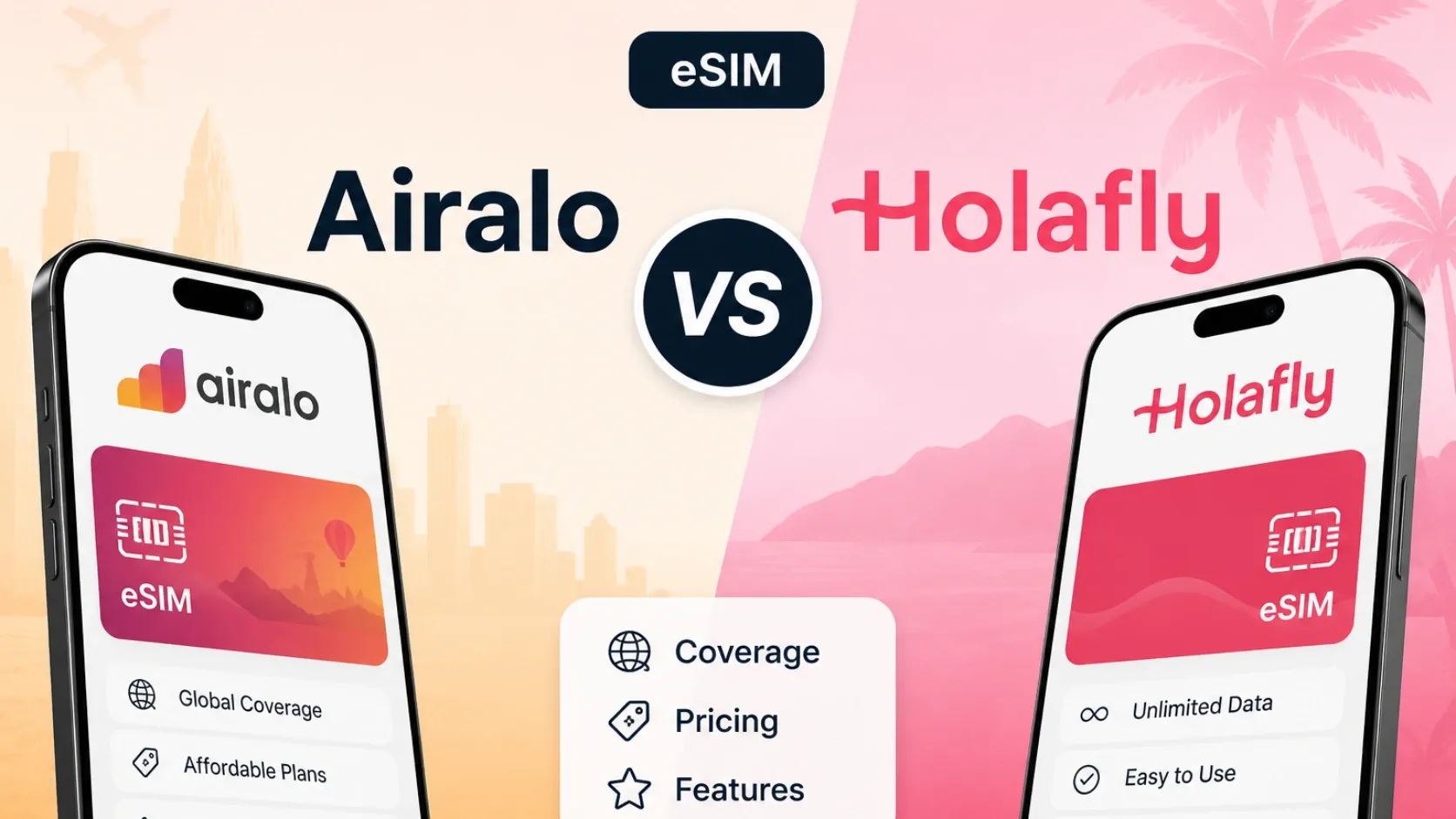
| Airalo | 10 GB / 30 days | 10 GB | 30 days | €33.00 | Travelers already using Airalo across multiple trips; ~2.7× the eSIMFOX price |
| Holafly | Unlimited / 30 days | Unlimited | 30 days | €90.90 | Heavy streamers comfortable with unlimited-style fair-use caps; ~7.5× the eSIMFOX 10 GB price |
| Saily | 10 GB / 30 days | 10 GB | 30 days | €28.59 | NordVPN ecosystem users; ~2.2× the eSIMFOX price at the same tier |
Current eSIMFOX plans for North America
Buy a North America eSIM from €3.99
10% off
Exclusive reader bonus
Get an extra 10% off your first eSIMFOX eSIM as a thanks for reading.
NORTHAMERICA10New customers only. One use per account. Subject to change.
Why eSIMFOX is best for World Cup 2026 travel
The FIFA World Cup 2026 is the first tournament hosted across three countries. Fans following their team from the group stage in Dallas to the Round of 16 in Toronto to the quarterfinals in Mexico City face a connectivity problem: most travel eSIM providers sell per-country plans, forcing you to buy three separate eSIMs and re-install at each border. eSIMFOX solves this with one regional plan that covers USA, Canada, and Mexico on a single install.
Install the eSIM before you board your flight. When you land at JFK, Toronto Pearson, or Mexico City International, you are already connected—no airport kiosk queue, no passport photocopy, no price uncertainty. On match days, airport SIM counters will see 50–100% increased traffic; fans who pre-install skip the wait entirely.
Hotspot is included. Share your data connection with a travel companion or laptop in the fan zone outside MetLife Stadium, Estadio Azteca, or BC Place. Stadium WiFi will be congested on match day—your eSIM is the reliable fallback for uploading match clips, checking the knockout bracket, or video-calling home after a win.
Transparent pricing means no fair-use throttling surprises mid-tournament. The plan selector below shows the current data tiers, validity windows, and prices. Pick the tier that fits your trip length and data needs, install in 60 seconds, and keep your home SIM active for calls and 2FA.
What to look for in a World Cup 2026 eSIM plan
Cheapest is not best for this trip. The World Cup 2026 spans three countries, sixteen host cities, and forty days from June 11 through July 19 — picking an eSIM means picking for cross-border use, match-day reliability, and post-tournament flexibility. Six things to check before you buy:
- Multi-country coverage in a single plan — USA, Canada, and Mexico under one install. If the plan covers only one country, you're buying three.
- At least 10–15 GB for a two-week trip. Match-day uploads, video calls home, ride-hailing, and offline-map syncs add up quickly. Heavy streamers and remote workers should target 20 GB or an unlimited tier.
- 5G availability in the major host cities — Mexico City, New York, Dallas, Los Angeles, Toronto, Vancouver. 5G capacity matters when 50,000 fans saturate a stadium cell.
- Hotspot and tethering included, not as a paid add-on. One person hotspotting to a group of three on a regional plan beats three separate single-country plans every time.
- Validity that covers your full travel window — group stage through final, plus any pre-tournament arrival and post-tournament wind-down. Most fans need 30-day or 45-day validity, not a 7-day plan that lapses before the round of 16.
- Instant QR activation before you fly — no airport queues, no kiosk hunt at MEX or Pearson. The whole point of an eSIM is that it's ready before you board.
eSIMFox's North America regional plan checks each of these boxes. Single install, tri-country roaming, 5G in major host cities via the local partner network, hotspot included, validity tiers that cover the full tournament window, and an install flow that takes under five minutes at home.
Provider breakdowns: how the alternatives compare for World Cup travelers
Here is how each major travel-eSIM provider stacks up for a World Cup 2026 trip. The lens is cross-border: most fans will follow their team or a group-stage favorite across at least two of the three host countries between June 11 and July 19, so the question is rarely 'which single-country plan is cheapest' — it's 'who lets me keep one connection alive while the bracket sends me from Dallas to Toronto to Mexico City.' eSIMFox leads because of the tri-country regional plan; the alternatives are honest fits for narrower trips.
Here is the full North America regional plan ladder for the four providers compared in this article, at the data tiers most relevant for a 2–3 week World Cup trip. Prices verified 2026-05-30 — confirm on each provider's site before purchase.
eSIMFOX: regional tri-country plan for cross-border fans
Best for: Fans following their team through the group stage and knockouts across USA, Canada, and Mexico.
Strengths:
- One regional plan covers all three host countries—no re-install at the border.
- Install before you fly; land already connected at any of the 16 host cities.
- Transparent pricing with no fair-use throttling.
- Hotspot included—share data with travel companions or laptops in fan zones.
- Keep your home SIM active for calls and 2FA.
Weaknesses:
- If you are only attending matches in one country and never crossing borders, a single-country eSIM from another provider might offer a lower per-GB rate.
- Regional plans typically cost more than the cheapest single-country tier, though the convenience of one install across three countries usually justifies the difference.
Ideal traveler type:
Fans who plan to follow their team across multiple host cities in different countries. If your itinerary includes group-stage matches in Dallas, a Round of 16 match in Toronto, and a quarterfinal in Mexico City, the eSIMFox regional plan is the only option that doesn't add friction at every border. It is also the right call for traveling parties of three or more — one person can hotspot to the group, and the per-GB rate spread across multiple devices typically beats every single-country alternative.
Airalo: familiar app, per-country plans only
Best for: Travelers who already use Airalo for other trips and prefer the familiar app experience.
Strengths:
- Recognizable brand with a polished mobile app.
- Wide country coverage—USA, Canada, and Mexico plans are all available.
- Established support infrastructure.
Weaknesses:
- No regional plan—you need three separate eSIM installs for USA, Canada, and Mexico.
- Re-installing at each border adds friction: download a new QR code, delete the old eSIM, scan the new one, wait for activation.
- Pricing was not verified in the current snapshot used for this article—check Airalo's site for current rates before purchase.
Ideal traveler type:
Fans who are only attending matches in one country and do not plan to cross borders. If you are flying into New York for group-stage matches at MetLife Stadium and flying home from the same airport, a single-country Airalo plan for the USA is a reasonable choice. It is also a fine pick for fans who prefer a familiar app from prior trips, where the muscle memory of installing the eSIM and topping up matters more than squeezing the last dollar out of the data tier.
Holafly: unlimited-style plans with fair-use trade-offs
Best for: Heavy streamers who want unlimited-style data and are willing to accept fair-use limits.
Strengths:
- Unlimited-style data marketing appeals to fans who plan to upload match clips, stream highlights, and post Instagram Reels from the stadium.
- Per-country plans available for USA, Canada, and Mexico.
Weaknesses:
- Fair-use limits can throttle speeds after a certain threshold—check the plan details before purchase.
- No regional plan—you need three separate installs for cross-border travel.
- Pricing was not verified in the current snapshot used for this article.
Ideal traveler type:
Fans who prioritize unlimited-style data over cross-border convenience and are staying in one country for the duration of their trip. If you are attending multiple matches in the USA only and plan to stream every match in 4K from your hotel, Holafly's unlimited tier may carry you further than a metered plan. Read the fair-use clause carefully — speeds typically drop after a daily ceiling, and during match windows that ceiling can hit faster than usual.
Saily: app-managed option for NordVPN users
Best for: Travelers who are already part of the Nord Security / NordVPN ecosystem and prefer app-based eSIM management.
Strengths:
- App-based install and management flow—everything happens through the Saily mobile app.
- Country and regional plans available for major travel destinations.
Weaknesses:
- Pricing for USA, Canada, and Mexico was not verified in the current snapshot used for this article.
- No confirmed regional plan covering all three World Cup host countries—likely requires three separate installs.
Ideal traveler type:
Fans who already use NordVPN and want to keep their travel connectivity inside the same ecosystem. Saily is worth checking, but its World Cup 2026 pricing was not verified in the current snapshot used for this article — confirm rates and regional coverage on Saily's site before purchase. If you are not already in the Nord Security ecosystem, the switching cost rarely justifies picking Saily over eSIMFox or Airalo for a single tournament trip.
Network coverage at World Cup 2026 host cities
The FIFA World Cup 2026 runs across 16 host cities in three countries. Understanding the carrier landscape helps you set realistic expectations for signal strength and data speeds.
USA host cities (11):
- MetLife Stadium (East Rutherford, NJ / New York area)
- Mercedes-Benz Stadium (Atlanta, GA)
- AT&T Stadium (Arlington, TX / Dallas area)
- SoFi Stadium (Inglewood, CA / Los Angeles area)
- Levi's Stadium (Santa Clara, CA / San Francisco Bay Area)
- Lumen Field (Seattle, WA)
- Gillette Stadium (Foxborough, MA / Boston area)
- Hard Rock Stadium (Miami Gardens, FL / Miami area)
- Lincoln Financial Field (Philadelphia, PA)
- Arrowhead Stadium (Kansas City, MO)
- NRG Stadium (Houston, TX)
USA carriers: AT&T, T-Mobile, and Verizon are the three major networks. All three offer strong 4G LTE coverage in the host cities listed above. 5G is widely available in metro areas like New York, Los Angeles, Dallas, and Miami, though stadium-interior 5G can be congested on match days when 50,000+ fans are streaming simultaneously. Check the live eSIMFOX plan selector for the current partner networks before purchase—we do not claim eSIMFOX uses any specific carrier unless verified.
Canada host cities (2):
- BMO Field (Toronto, ON)
- BC Place (Vancouver, BC)
Canada carriers: Rogers, Bell, and Telus are the three major networks. Toronto and Vancouver both have strong 4G and 5G coverage. Stadium WiFi at BMO Field and BC Place will be congested on match days—your eSIM is the reliable fallback.
Mexico host cities (3):
- Estadio Banorte (formerly Estadio Azteca, Mexico City)
- Estadio BBVA (Monterrey, Nuevo León)
- Estadio Akron (Guadalajara, Jalisco)
Mexico carriers: Telcel, AT&T Mexico, and Movistar are the three major networks. Mexico City, Monterrey, and Guadalajara all have strong 4G coverage; 5G is available in metro areas but less widespread than in the USA or Canada. Telcel has the widest geographic footprint, especially outside major cities.
Stadium WiFi reality: Every host stadium will offer free WiFi on match days, but expect network saturation when 50,000–80,000 fans are uploading match clips, checking the bracket, and video-calling home. Your eSIM connection will be faster and more reliable than stadium WiFi for anything time-sensitive.
eSIM vs local SIM vs roaming for World Cup 2026 travelers
Fans traveling to the World Cup 2026 have three connectivity options: a regional eSIM (one install, three countries), three separate local eSIMs (one per country), or home-carrier roaming. Each has trade-offs.
Here is the head-to-head for a World Cup 2026 trip:
Three local eSIMs work if you're confident you'll never cross a border — but for the World Cup specifically, that's an unusual itinerary. Group-stage matches are spread across all three countries, and knockout-round bracket placements often send teams across two or three host cities in the same week. The regional plan removes that friction.
Regional eSIM (eSIMFOX):
- One install covers USA, Canada, and Mexico.
- No re-install at the border—auto-switches networks when you cross from Dallas to Toronto to Mexico City.
- Transparent pricing—one bill, no surprise charges.
- Install before you fly; land already connected.
- Best for fans following their team through the knockouts across multiple countries.
Three local eSIMs (per-country plans):
- Cheaper per-GB in any single country.
- Requires re-install at each border: download a new QR code, delete the old eSIM, scan the new one, wait for activation.
- Friction multiplies—if you cross from USA to Canada to Mexico, you install three times.
- Best for fans attending matches in only one country and never crossing borders.
Home-carrier roaming:
- T-Mobile Magenta and Magenta Max include USA, Canada, and Mexico roaming at no extra charge (check your plan).
- Verizon TravelPass charges $10/day per country.
- UK and EU carriers usually charge premium roaming rates for North America—verify before you fly.
- Best for fans already on a US carrier with included Mexico/Canada roaming.
Recommendation: If you are crossing borders, a regional eSIM is the simplest pick. If you are staying in one country for the entire trip, a local eSIM might save money. If you are already on T-Mobile Magenta or a similar plan with included North America roaming, you might not need a travel eSIM at all—but verify your plan's roaming policy before you fly.
How much data do you need for the World Cup?
Match the data tier to your travel pattern. The table below shows typical data needs by trip length and use case.
World Cup 2026 data usage estimates
Data usage estimates for FIFA World Cup 2026 travel by trip length and use pattern
| Trip profile | Duration | Typical use | Data estimate |
|---|---|---|---|
| Group stage spectator | 1 week, 1 city | Google Maps, WhatsApp, Instagram, match-day streaming | 5 GB |
| Round of 16 follower | 2 weeks, 2 cities | Google Maps, WhatsApp, Instagram, TikTok, video calls, hotspot for laptop | 10–15 GB |
| All-in fan (knockouts) | 4 weeks, 3+ cities, multiple borders | Heavy streaming, uploading match clips, Instagram Reels, constant hotspot | 20 GB or unlimited |
| Heavy streamer | Any duration | Uploading 4K match clips, Instagram Reels from the stadium, constant video calls | Add 5 GB to each tier above |
Apps that consume the most data: Google Maps (navigation between host cities), WhatsApp (video calls home after a win), Instagram and TikTok (uploading match clips and Reels), streaming services (watching highlights or other matches in your hotel), and hotspot/tethering (sharing your connection with a laptop or travel companion). If you plan to upload 4K video from the stadium or stream live matches on your phone, add 5 GB to the tier above.
Airport SIM vs eSIM on World Cup match days
On World Cup match days, airport SIM kiosks at JFK, Toronto Pearson, and Mexico City International will see 50–100% increased traffic. Fans who pre-install an eSIM skip the queue entirely.
Airport SIM kiosks at major international airports already have peak waits of 30–60 minutes during normal travel seasons. The World Cup will multiply that. If you land at JFK on the morning of a USA group-stage match at MetLife Stadium, the SIM counter queue could stretch to 90+ minutes. By the time you reach the front, you might miss your train or rideshare window.
Install your eSIM before you board—scan the QR code in the airport lounge or at your departure gate, and you will land with Google Maps, WhatsApp, and rideshare apps already working.
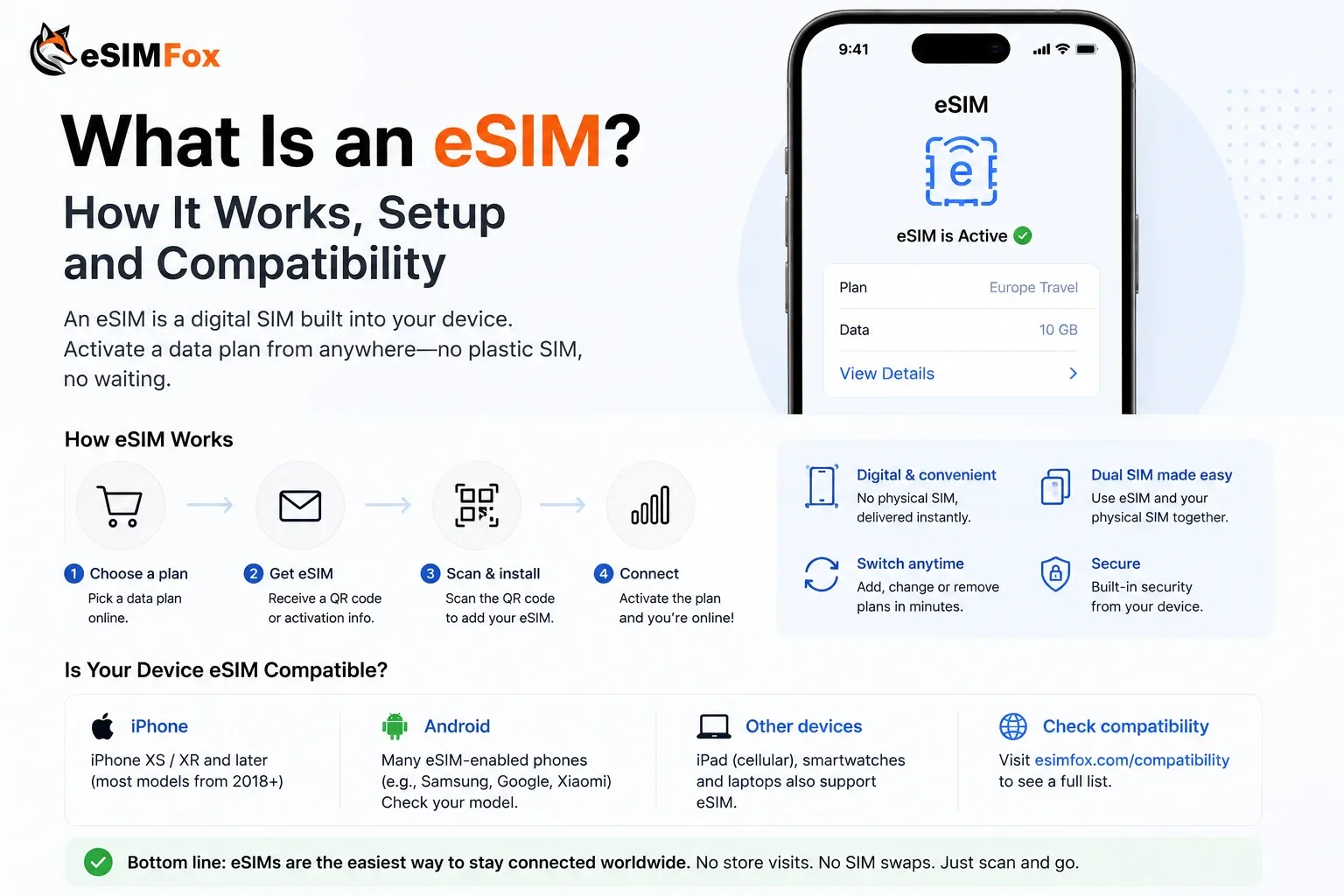
Verify eSIM compatibility before buying. Use the eSIMFOX compatibility checker to confirm your phone supports eSIM. Most iPhones from XS onward, most Samsung Galaxy S20+ models, and most Google Pixel 3+ models support eSIM, but older phones and some budget Android models do not. Check before you fly—if your phone is not eSIM-compatible, you will need a physical SIM from the airport kiosk.
Match-day connectivity tips for World Cup 2026
Match days at host airports and stadiums will be among the busiest travel windows of 2026 — security queues at JFK and Mexico City International stretch past two hours, ride-hailing surges through the roof around MetLife and SoFi, and stadium WiFi saturates within ten minutes of kickoff once 70,000+ fans start uploading clips. A handful of preparations before you leave the hotel turn a stressful day into a smooth one.
- Download digital tickets to your phone wallet before you leave the hotel. Even if your provider's app loads instantly at the gate, a cached wallet pass means you scan and walk through — no spinning loader at security.
- Save offline maps in Google Maps or Apple Maps for the stadium neighborhood and your hotel district. Live navigation still works once you've got data, but a cached map gets you to the right exit if signal drops between subway stops.
- Charge a portable battery to 100% the night before. Long match days plus travel plus stadium photos drain phones fast — and a Lightning or USB-C pack saves the moment your eSIM is doing its best work but the battery isn't.
- Check transport apps (Uber, Lyft, MetroCard, Mexico City Metro) the night before. Match-day schedules shift, fare zones surge, and you don't want to discover the app needs a reauth at the turnstile.
- Use WhatsApp, iMessage, Telegram, or FaceTime for cross-border comms. They run over data on your eSIM and incur no international call charges — your group stays coordinated whether you're in Vancouver or Monterrey.
- Hotspot for a travel companion or a tablet you're using for the bracket sheet. Most eSIMFox plans include hotspot — share a single connection across the group on match day rather than buying multiple data plans.
Pre-departure setup: install your eSIM before you fly
Install at home on Wi-Fi, not at the airport. The whole flow takes under five minutes on a stable connection — once you've landed in arrivals at JFK or Pearson after a delayed flight, the last thing you want is to be hunting for an open Wi-Fi hotspot to download a QR code.
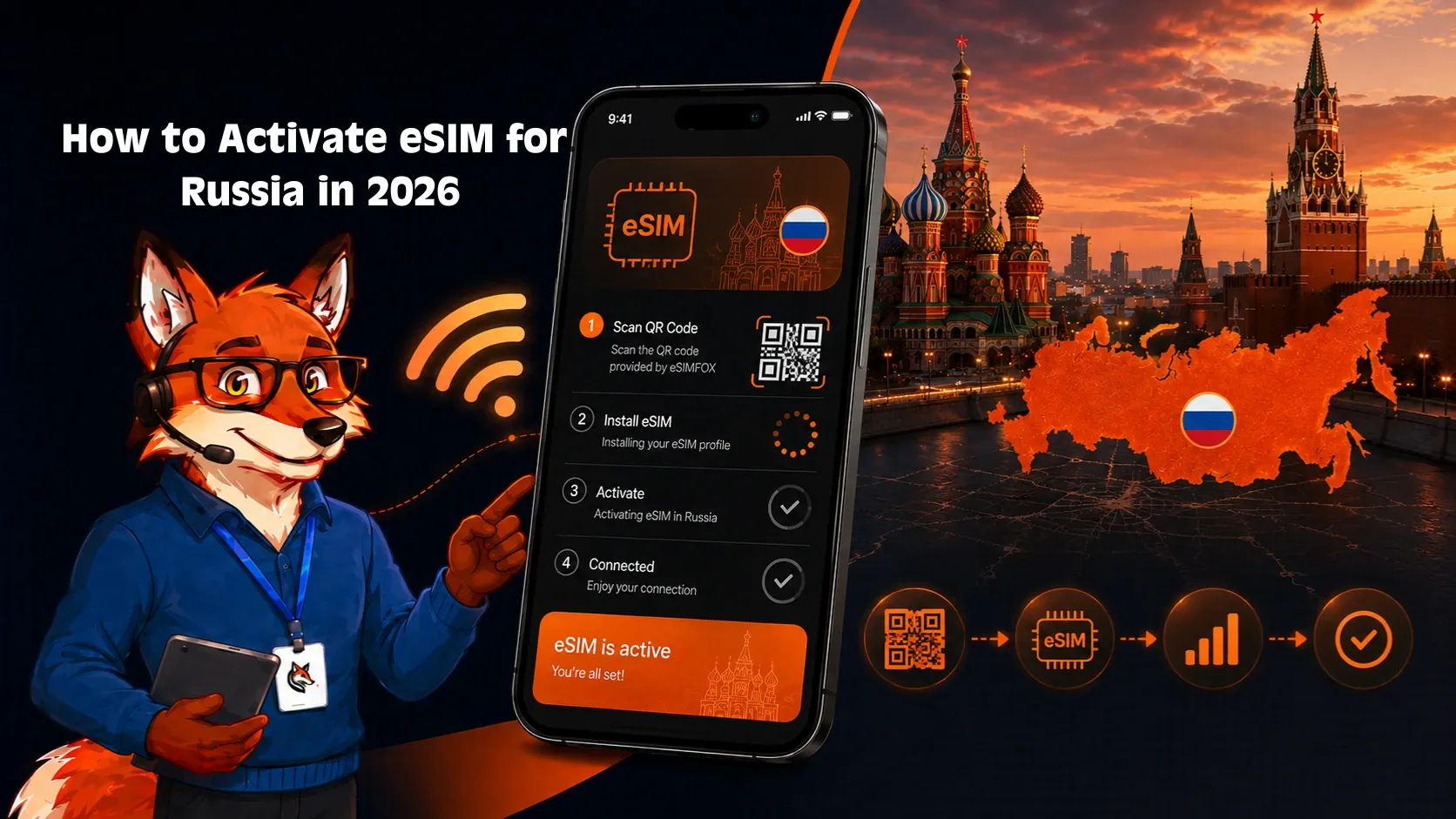
- Buy the eSIM plan online at eSIMFox before you leave home. The North America regional plan covers USA, Canada, and Mexico under one install.
- Check your phone's eSIM compatibility before purchase — the eSIMFox compatibility checker confirms which iPhone and Android models work with the profile.
- Receive the QR code by email immediately after purchase. Save the email or screenshot the QR for offline access.
- On iPhone: Settings → Cellular → Add eSIM → Use QR Code → scan the code from your laptop or email. On Android: Settings → Network & Internet → SIMs → Add eSIM → scan.
- Label the line something clear like "World Cup 2026" so it's obvious in your Settings list alongside your home line.
- Activate the eSIM as your primary data line once you land. Your physical home SIM stays active in the second slot for calls, SMS, and any two-factor authentication codes sent to your home number.
Getting installed before departure means you walk off the plane at any of the 16 host cities with data already working — no kiosk queue, no foreign-language carrier app, no awkward dual-SIM swap in the arrivals hall.
Is your phone eSIM compatible?
Most modern smartphones support eSIM — iPhone XS and newer (2018+), Pixel 4 and newer, Samsung Galaxy S20 and newer, and most flagship Android devices from 2020 onward. Mid-range and older devices vary.
Two things must be true before you buy: your phone must support eSIM (embedded SIM hardware), and your phone must be network-unlocked. If you bought your device outright or you're past your carrier contract, you're almost certainly unlocked. If you're on an active US carrier contract, check with your carrier — most will unlock on request for travel.
Check compatibility with the eSIMFox eSIM compatibility checker before purchase, or use the GSMA's global device database for an independent cross-reference. The checker takes 10 seconds and saves you the friction of buying a plan that won't activate on landing.
Troubleshooting your World Cup eSIM
Most eSIM issues during the World Cup 2026 will fall into a handful of recurring patterns: a profile that activates but won't pass data, a regional plan that doesn't auto-switch when you cross a border, weak signal inside a packed stadium on match day, or a hotspot that refuses to share when you're rallying a group in the fan zone. The fixes below take under five minutes each. Work through the relevant block before contacting support — most tickets are resolved by toggling Data Roaming, restarting the handset, or stepping outside the stadium concourse for a stronger signal. Have your eSIMFox order email handy: it carries your activation code, the QR scan, and the SM-DP+ address you'll need if the install flow stalls.
No data after landing at JFK, Toronto Pearson, or Mexico City International:
- Enable Data Roaming in your phone's settings (Settings > Cellular > Data Roaming ON for iPhone; Settings > Network & Internet > Mobile network > Roaming ON for Android).
- Restart your phone and wait 60 seconds for the eSIM to register on the local network.
- If you still have no data, toggle Airplane Mode on and off to force a network re-scan.
Crossing the border (USA → Canada, USA → Mexico, Canada → Mexico):
- Regional eSIMs auto-switch networks when you cross borders. Wait 60–90 seconds after landing for the new network to register.
- Local eSIMs (per-country plans) require a new install at each border. Download the new QR code, delete the old eSIM, scan the new one, and wait for activation.
- If the auto-switch does not happen, restart your phone or toggle Airplane Mode on and off.
Stadium signal weak during a match:
- Stadium WiFi will be congested on match days—50,000+ fans uploading match clips simultaneously saturates the network.
- Your eSIM connection on AT&T, T-Mobile, Verizon, Rogers, Bell, Telus, Telcel, or AT&T Mexico will usually outperform stadium WiFi for anything time-sensitive.
- If your eSIM signal is weak, move to a different section of the stadium or step outside to the concourse—signal strength varies by location.
Battery drain from constant network switching:
- If you are staying in one city for multiple days, lock your phone to one carrier in Settings > Cellular > Network Selection > Manual (iPhone) or Settings > Network & Internet > Mobile network > Automatically select network OFF (Android).
- This prevents your phone from constantly scanning for the strongest network and saves battery.
QR code already used or cannot scan:
- Most eSIM QR codes can only be scanned once. If you accidentally deleted your eSIM after scanning, contact eSIMFOX support for a replacement activation code.
- Do not buy a new plan—most providers will issue a replacement code for free if you contact support within 24 hours.
Hotspot not working:
- Verify that your eSIM plan includes hotspot/tethering (most eSIMFOX plans do).
- Enable Personal Hotspot in Settings > Personal Hotspot (iPhone) or Settings > Network & Internet > Hotspot & tethering (Android).
- If hotspot still does not work, restart your phone and try again.
When to contact support. If none of the steps above resolve your issue, reach out to eSIMFox support through the in-app chat or the dashboard contact form. During major events like the World Cup, response times are typically under one hour during business hours. Include your phone model, the activation date, the host city you're in, and a screenshot of Settings > Cellular > [eSIM line] showing the current network and signal bars — that context cuts triage time substantially. If you're already in the stadium and need a fast fallback, switch to your home carrier's roaming for the match window (most US carriers include Canada and Mexico in their travel packs) and reactivate the eSIMFox line once you're back in the hotel — that way you don't miss the match because of an activation queue.
Frequently asked questions
Related World Cup 2026 travel guides
The FIFA World Cup 2026 runs across three countries and 16 host cities. These related guides help you plan your trip and stay connected throughout the tournament.
- World Cup 2026 host cities guide — detailed breakdown of all 16 host cities, stadium locations, and city-specific travel tips.
- World Cup 2026 schedule — full match schedule, group-stage fixtures, and knockout-round dates across USA, Canada, and Mexico.
- eSIMFOX plans for Canada — dedicated Canada eSIM plans for fans attending matches in Toronto or Vancouver.
- eSIMFOX plans for Mexico — dedicated Mexico eSIM plans for fans attending matches in Mexico City, Monterrey, or Guadalajara.
- eSIM compatibility checker — verify that your phone supports eSIM before you buy.
- What is an eSIM — beginner's guide to eSIM technology, installation, and troubleshooting.
- eSIM not working — troubleshooting guide for common eSIM issues during travel.
- eSIM-supported devices — full list of phones and tablets that support eSIM.
Provider plan ladder for FIFA World Cup 2026 (North America regional)
North America regional eSIM — provider plan ladder for FIFA World Cup 2026 (verified 2026-05-30)
| Data tier | eSIMFOX (30d) | Saily (30d) | Airalo (30d) | Holafly Unlimited |
|---|---|---|---|---|
| 1 GB | €2.99 (~$3) / 7 days | — | — | — |
| 3 GB | €4.99 (~$5) / 15 days | $10.39 | — | — |
| 5 GB | €7.99 (~$9) | $15.59 | €21.50 (~$23) | Unlimited 7 days €36.90 (~$40) |
| 10 GB | €11.99 (~$13) — top tier | $28.59 | €33.00 (~$36) | Unlimited 15 days €56.90 (~$62) |
| 20 GB | not offered — use 10 GB | $35.74 | €43.50 (~$47) | Unlimited 20 days €68.90 (~$75) |
| 50 GB | not offered | not offered | €79.00 (~$86) | Unlimited 30 days €90.90 (~$99) |