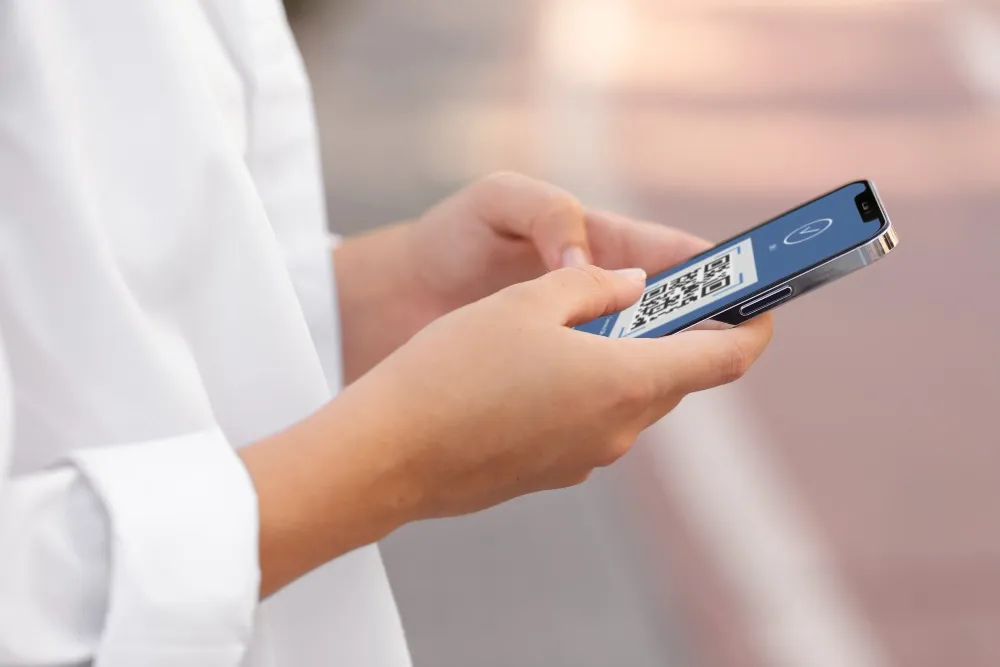
Are you a frequent traveler or someone who needs multiple phone numbers? eSIM technology might be the solution you've been looking for. Modern smartphones increasingly offer dual SIM capabilities with an eSIM option, which often proves more convenient than traditional physical SIM cards, especially when traveling.
When you purchase an eSIM, you'll receive a QR code, an SM-DP+ Address, and an activation code. This guide will demystify the SM-DP+ Address concept and walk you through manually installing an eSIM on different devices.
Looking for the ideal travel eSIM? Get a suitable and reasonably priced eSIM here. You won't regret using an eSIM for your next adventure!
What is an SM-DP+ Address?
An SM-DP+ Address (Subscription Manager Data Preparation) is essentially a digital location that enables your phone to connect with your mobile network provider's eSIM management system.
In Simple Terms:
Think of the SM-DP+ Address as:
- A specialized digital address your phone uses to find your eSIM information
- Similar to an email address or URL for your eSIM
- The connection point between your device and the mobile network's eSIM system
When your device uses this address, it can activate and properly configure the eSIM embedded in your phone. The SM-DP+ Address ensures secure, authenticated communication, protecting your eSIM profile from unauthorized access—much like how encryption protects your personal data online.
How Does an SM-DP+ Address Work?
The SM-DP+ Address facilitates the setup of your digital SIM card through a straightforward process:
1. Connection Initialization: When activating your eSIM, your device connects to a specific server using the SM-DP+ Address as the destination.
2. Profile Download: Once connected, the SM-DP+ server securely transmits all necessary profile information to your device, including network authentication credentials and service configuration.
3. Automatic Configuration: Your device then processes this information, configuring the eSIM to work with your chosen mobile network.
4. Security Verification: Throughout this process, multiple security checks ensure only authorized profiles are installed on your device.
The SM-DP+ Address is particularly crucial for manual activation scenarios where scanning a QR code isn't possible or practical.
When Should You Activate an eSIM Manually?
There are several situations where manual activation becomes necessary:
- No QR Code Available: You've lost the QR code or received your eSIM details through a channel that didn't include the QR code image.
- QR Code Issues: You've attempted to scan the QR code multiple times, but it's not working correctly.
- Device Limitations: Your primary device has the eSIM capability, but you can't scan a QR code displayed on the same device.
- Preference: Some users simply prefer the manual method for greater control over the activation process.
Prerequisites for Manual eSIM Activation
Before attempting manual activation, ensure you have:
- eSIM Compatible Device: Verify your device supports eSIM technology (iPhone XS or newer, Pixel 3 or newer, Samsung S20 or newer, and various other modern smartphones).
- Carrier-Unlocked Phone: Your device should not be locked to a specific carrier unless you're activating an eSIM from that same carrier.
- Activation Credentials : You'll need both the SM-DP+ Address and activation code provided by your eSIM supplier.
- Active Internet Connection: Your device must be connected to the internet via Wi-Fi or another cellular connection to complete the activation.
How to Obtain Your eSIM Activation Credentials
After purchasing an eSIM, you should receive:
- An email containing your activation details, including the QR code, SM-DP+ Address, and activation code
- These credentials are typically sent immediately after purchase confirmation
Can't find your activation email? Contact customer support at admin@esimfox.com for assistance.
Important Note: The SM-DP+ Address is **not** a website URL that you can visit in a browser. It's a specialized address used only within your device's eSIM activation interface. Even if it appears as a clickable link in your email, it's normal that you cannot access it through a web browser.
Step-by-Step Manual eSIM Installation Guide
For Apple iOS Devices (iPhone XS and newer, iPad Pro and newer):
1. Access eSIM Settings:
- Open Settings
- Tap **Cellular** or Mobile Data
- Select Add Cellular Plan or Add eSIM
2. Enter Details Manually:
- Tap Use QR Code
- Look for and select Enter Details Manually
- Carefully input your SM-DP+ Address exactly as provided
- Enter your activation code
- Note: Do not include 'https://' or 'http://' as it's not a website URL
3. Complete Setup:
- Follow the on-screen prompts to name your plan and configure settings
- Choose whether to use this as your primary line or secondary line
For Samsung Android Devices:
1. **Navigate to SIM Settings**:
- Open Settings
- Tap Connections
- Select SIM Card Manager