Abstract
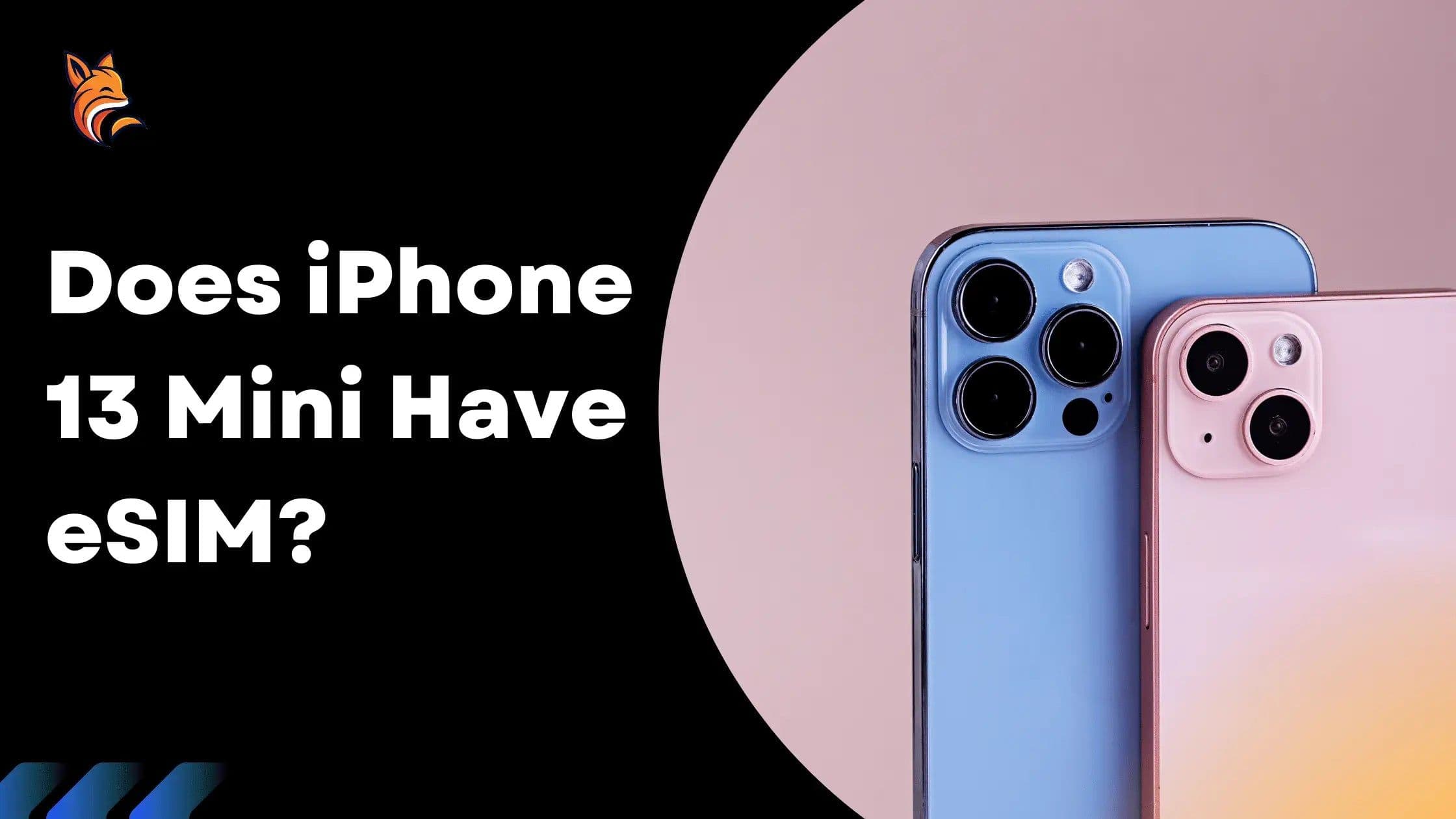
The iPhone 13 Mini fully supports eSIM technology, allowing you to activate cellular plans without needing a physical SIM card. This digital solution provides greater flexibility for managing your mobile connectivity.
It's worth noting that this feature may not be available on devices purchased in China, Hong Kong, or Macau. Additionally, carrier support for eSIM varies, so checking compatibility with your service provider is recommended.
Activating your eSIM is remarkably simple—just scan a QR code and follow a few on-screen prompts. This technology not only offers convenience but also enhances device security and saves internal space within your phone.
Ready to set up eSIM on your iPhone 13 Mini? Continue reading for our step-by-step guide!
Introduction
Welcome, tech enthusiasts and mobile connectivity seekers! This comprehensive guide explores the powerful eSIM capabilities of Apple's compact iPhone 13 Mini. Whether you're considering a purchase or looking to maximize your current device's potential, you'll find everything you need to know about leveraging eSIM technology on this innovative smartphone.
iPhone 13 Mini eSIM Compatibility
Does the iPhone 13 Mini Support eSIM?
Yes, the iPhone 13 Mini comes fully equipped with eSIM support. An embedded SIM (eSIM) is a modern digital alternative to traditional physical SIM cards, allowing you to activate cellular plans directly on your device. This technology is particularly valuable for frequent travelers and anyone who needs to manage multiple phone numbers or data plans.
Regional Limitations to Consider
Before proceeding, it's important to understand that not all iPhone 13 Mini models offer eSIM functionality. Specifically:
- Models originally sold in mainland China, Hong Kong, or Macau generally do not support eSIM technology
- The availability of eSIM services depends on your carrier's support for this technology
- Some regions may have regulatory restrictions affecting eSIM availability
Therefore, verifying eSIM compatibility with both your specific device model and your carrier is an essential first step.
How to Activate eSIM on Your iPhone 13 Mini
Setting up an eSIM on your iPhone 13 Mini involves a straightforward process:
1. Access Settings: Open the Settings app on your iPhone
2. Navigate to Cellular: Tap on "Cellular" or "Mobile Data" (depending on your region)
3. Add a Plan: Select "Add Cellular Plan" or "Add Data Plan"
4. Scan QR Code: Use your iPhone's camera to scan the QR code provided by your carrier
5. Follow Prompts: Complete the setup by following the on-screen instructions
6. Configure Line Settings: Choose whether to use your eSIM as your primary or secondary line
7. Label Your Plan: Give your eSIM a recognizable name (e.g., "Work," "Personal," or "Travel")
If your carrier doesn't provide a QR code, you may need to install a carrier app or enter the information manually. Contact your service provider for specific instructions if needed.
Benefits of Using eSIM on iPhone 13 Mini
The eSIM technology in your iPhone 13 Mini offers numerous advantages:
Convenience and Flexibility
- Easy Carrier Switching: Change between carriers or plans without physically swapping SIM cards
- Dual SIM Functionality: Use both a physical SIM and eSIM simultaneously for separate numbers
- Remote Activation: Set up new plans remotely without waiting for physical SIM delivery
Space and Design Benefits
- Space Optimization: The absence of a second physical SIM tray allows for more efficient internal hardware arrangement
- Improved Water Resistance : Fewer openings in the device enhance its resistance to water and dust
- Sleeker Design: Contributes to the clean, minimalist design philosophy of the iPhone
Enhanced Security
- Theft Protection : eSIMs cannot be physically removed, making the device less attractive to thieves
- Digital Management : Secure activation processes reduce the risk of SIM card cloning
- Remote Deactivation : Carriers can more easily deactivate compromised eSIMs remotely
Using Dual SIM with iPhone 13 Mini
The iPhone 13 Mini supports dual SIM functionality through a combination of:
- One physical nano-SIM card
- One eSIM
This configuration allows you to:
- Maintain separate personal and business lines
- Add a local data plan when traveling internationally while keeping your main number active
- Use different carriers for voice and data services
- Test a new carrier without giving up your current service
To manage dual SIM settings:
1. Go to Settings > Cellular
2. Select the line you want to customize
3. Choose which line to use for calls, messages, and data